Diagnose search and storefront problems
Start with what shoppers actually see. Don’t just update VIBE’s copy of your catalog again and again, or add a result rule and hope it helps: different symptoms come from different parts of VIBE, and the right fix depends on which part is actually broken.
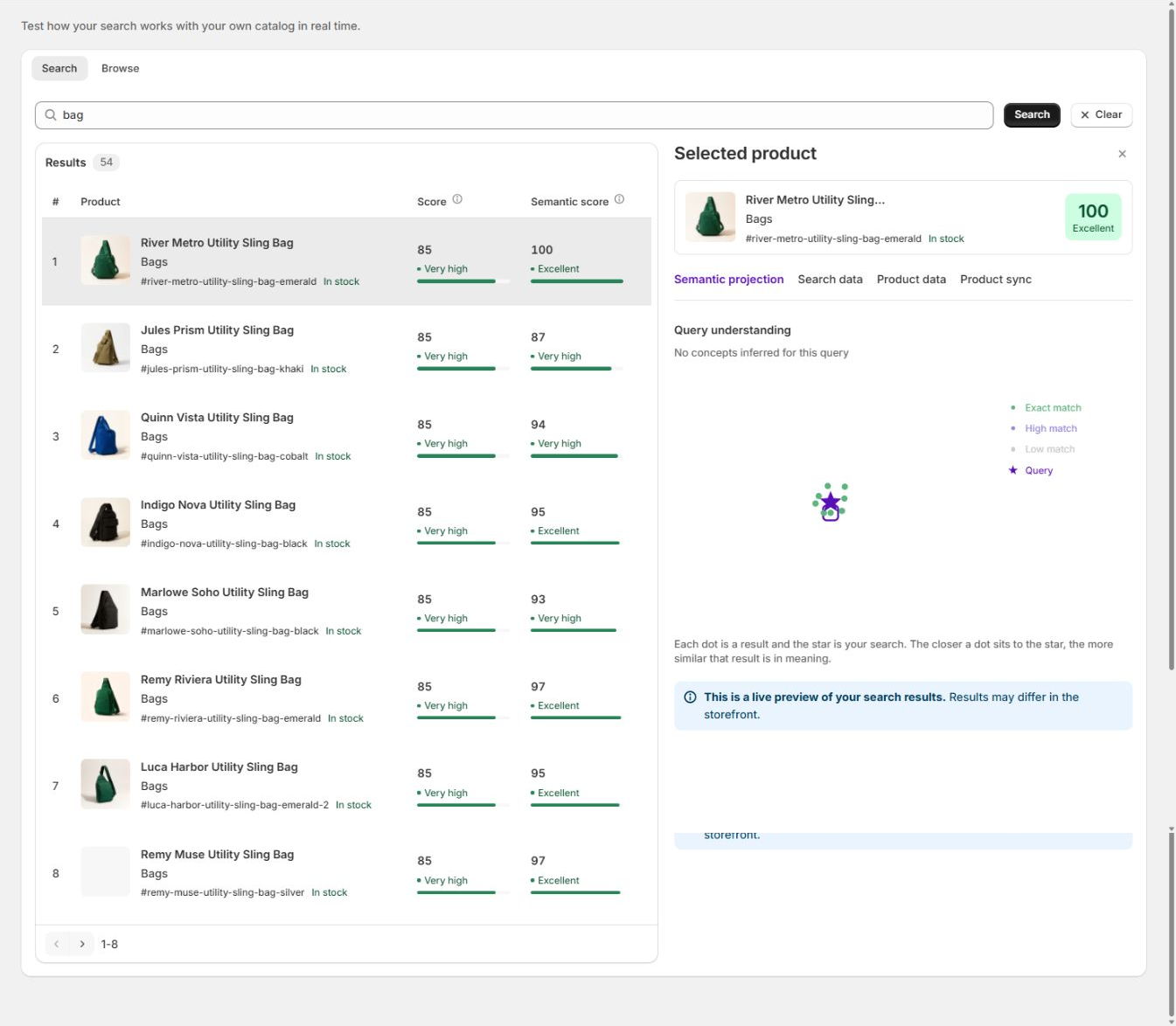
Use Search Preview to check your catalog and ranking without your theme in the way.
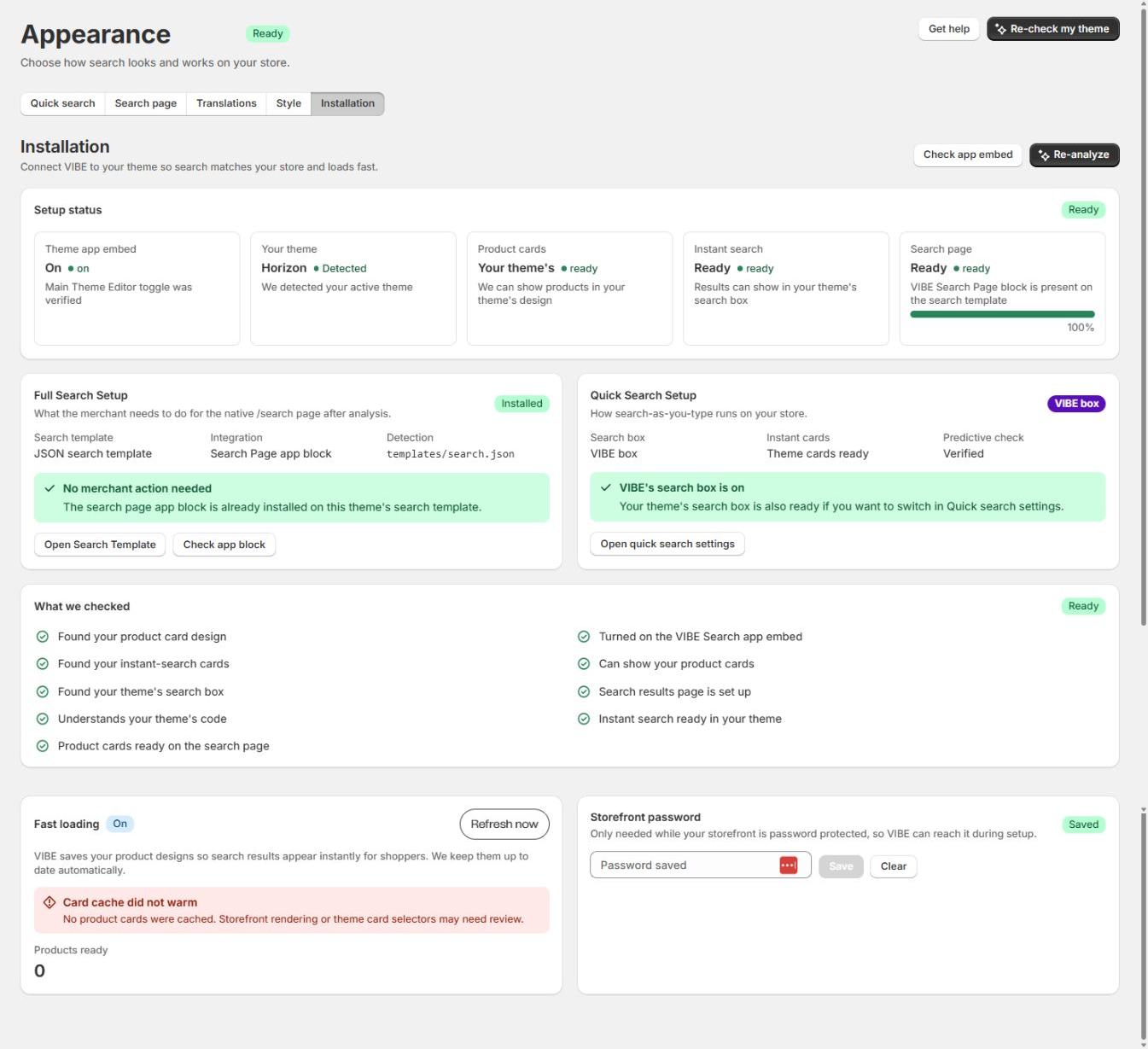
Use Installation when the storefront surface itself won't open or render.
For every problem you investigate, write down:
- Your store’s
.myshopify.comdomain. - Your published theme and the theme you’re testing.
- The storefront URL, language, and market.
- The exact search, product, collection, filter, control, or rule involved.
- Desktop or mobile, and which browser.
- What you expected to see, and what you actually saw.
- Roughly when it happened.
- Any recent catalog, theme, rule, plan, or translation change, or a change to how VIBE reads your products.
Search does not open
Section titled “Search does not open”The header search icon does nothing, opens your store’s old search, or opens a broken or empty panel.
Check, cheapest first:
- Open Appearance > Installation.
- Confirm the theme VIBE analyzed is your published theme.
- Confirm the VIBE switch in your theme is turned on.
- If it’s unclear whether the switch is on, select Check app embed.
- Open Appearance > Quick search and confirm the selected search-box mode.
- If you use your theme’s own search box, confirm Appearance shows it as ready.
- If you use VIBE’s search box, switch temporarily to VIBE’s own cards to rule out a theme-card rendering problem.
- Save the theme in the Theme Editor.
- Hard refresh the storefront.
- Test every header search icon, on both desktop and mobile.
What the result usually means:
- Switch off: an installation problem. Turn it on, save, and hard refresh.
- VIBE’s overlay works but your theme’s own search box doesn’t: a compatibility problem with that theme’s predictive search.
- The overlay opens but shows no products: a catalog, plan, request-limit, or exclusion problem, not an installation problem.
- One header icon works and another doesn’t: a theme selector or custom header VIBE isn’t detecting.
Don’t update VIBE’s copy of your catalog to fix a switch that’s off or a click that does nothing.
The full search page shows the old results
Section titled “The full search page shows the old results”Quick search uses VIBE, but your store’s /search page still shows Shopify’s native results, a duplicate grid, or no VIBE interface at all.
Check, cheapest first:
- Open Appearance > Installation.
- Review the Search page status.
- Open the Theme Editor for your published theme.
- Open the search template.
- Add or confirm the VIBE Search Page block.
- Remove a duplicate result section only if your theme setup calls for it.
- Save the theme.
- Return to VIBE and run the search-page check.
- Open
/search?q=<a-known-product>directly. - Test the search itself, filters, sorting, pagination, and product links.
The VIBE switch and the VIBE Search Page block are two separate pieces. One can be ready while the other is still missing, so check both.
A product is completely missing
Section titled “A product is completely missing”The product doesn’t appear for its exact title, in Search Preview or on the storefront.
Check Shopify first, since it’s the cheapest place to look:
- The product’s status is Active.
- The product is published to the Online Store.
- Shopify’s “hidden from search engines” setting is turned off.
- The product is published to the market you’re testing.
- The product has the title, handle, options, images, and inventory you expect.
Then check VIBE:
- Open Sync and Index > Configuration.
- Check your product, collection, and tag exclusions.
- Check your out-of-stock setting.
- Open Overview and confirm the latest update job isn’t pending, partial, cancelled, or failed.
- Select Run full sync only if VIBE’s copy looks stale or the product came from a large import.
- Search the exact title in Search Preview.
- If the product appears there, check its Product sync status to see whether VIBE’s copy of it is current.
- Check its Product data to see the actual content VIBE holds for it.
What the result usually means:
- Missing from Search Preview: the product isn’t in VIBE’s copy yet, or VIBE isn’t allowed to show it.
- Present in Search Preview but not on the storefront: check request-level settings, the theme surface, language or market, or rendering.
- Only appears when you search the exact title: a relevance or source-data problem, not a missing-product problem.
Don’t pin a product that isn’t in VIBE’s copy of your catalog yet, or that VIBE isn’t allowed to show.
A product ranks too low
Section titled “A product ranks too low”The product appears, but below weaker results.
Check, cheapest first:
- Run the exact search in Search Preview.
- Compare the Score and Semantic score shown for the result.
- Check the product’s title, description, type, tags, collections, vendor, and variants in VIBE’s copy.
- Check how VIBE reads your products, under Sync and Index > Configuration.
- Test again with every Explore control reset and no filters applied.
- Search the Merchandising table for active rules that match this search.
- Check rule priority and schedule.
- Check whether the product is sold out and your Show last setting is active.
- Decide whether this affects one search you care about, or many natural searches.
Choose the smallest fix that matches what you found:
- Fix the Shopify data when the product record itself is unclear.
- Update how VIBE reads your products when a broad range of natural searches are weak.
- Add a synonym when shoppers use different words for the same thing.
- Add a scoped boost for a business reason.
- Pin the product only when it must always hold a fixed position.
- Bury a competing product only when you have a deliberate business reason to.
Change one thing at a time and re-run the same search to see whether it worked.
Results are irrelevant for broad intent queries
Section titled “Results are irrelevant for broad intent queries”Exact product names work, but phrases like minimal lamp for small desk return poor matches.
Check, cheapest first:
- Look at several affected products in Shopify.
- Confirm their descriptions and product types actually describe the product, not just boilerplate text.
- Open Sync and Index > Configuration.
- Review whether Balanced, More visual, or More text fits your catalog.
- Confirm your product and context image sources are the right ones.
- Select Analyze catalog again only after a real change to your catalog or how you present it.
- Let that update, and any other queued update, finish.
- Re-run the same set of natural-language searches.
If only one campaign search needs a business override, add a scoped rule instead. If many unrelated natural searches are weak, the shared catalog data or how VIBE reads your products is the real problem, and a rule won’t fix that.
A synonym does not work
Section titled “A synonym does not work”- Confirm your plan includes custom synonyms.
- Open the rule and confirm it’s turned on.
- Confirm the words are comma-separated and genuinely mean the same thing.
- Confirm no higher-priority rule redirects or pins the same search first.
- Test the exact search in Search Preview and on the storefront.
- Check the rule’s usage numbers after some real storefront activity.
Avoid synonyms so broad they merge categories that should stay separate.
A redirect does not run
Section titled “A redirect does not run”- Confirm the rule is turned on and within its schedule.
- Confirm your plan includes redirects.
- Check the exact search phrase that should trigger it.
- Confirm the destination is a valid page on your store, or the URL you intended.
- Check for competing rules and their priority.
- Test from quick search and the full search page.
- Confirm your browser isn’t just showing a cached result from before.
Filters are missing
Section titled “Filters are missing”- Set up filters in Shopify’s Search & Discovery app.
- Confirm those fields actually have values on your products in Shopify.
- Open Explore mode > Filters.
- Select refresh.
- Turn on the filters you want VIBE to use.
- Confirm the affected products are in VIBE’s copy of your catalog.
- Open the storefront’s full search page or Explore surface that supports filters.
- Test the desktop sidebar or toolbar, and the mobile drawer.
Filters come from Shopify. Creating an Explore control doesn’t create a Shopify filter, so the two don’t substitute for each other.
An Explore control has little effect
Section titled “An Explore control has little effect”- Confirm Explore itself, and the control, are both turned on.
- Confirm the control is within your plan’s active-control limit.
- Check where the control sits in the storefront order.
- Test it in Search Preview > Browse with no exact filters applied.
- Move it from neutral to both extremes and compare results.
- Use concepts that are clearly distinct and actually represented in your catalog.
- Avoid using a control for something that’s really a fact, like size or color: use a filter for those instead.
- Only regenerate your default controls if you actually want to replace the current set.
A subtle effect can be correct if your catalog has few products that differ on that concept. Look at the products in the result set before assuming the control is broken.
Similar or image search is weak
Section titled “Similar or image search is weak”- Confirm your plan includes the feature.
- Confirm Similar, Taste, or Search by image is turned on for the surface you’re testing.
- Open Sync and Index > Configuration > Image matching.
- Confirm the product-image source you selected is correct.
- Confirm your optional context images are set up as expected.
- Open a few Shopify products and confirm those image fields hold real, accessible images.
- Update VIBE’s copy of your catalog after changing an image source.
- Test with a visually distinctive product or uploaded photo.
If the camera button is missing entirely, check your plan and feature settings before you troubleshoot relevance.
Your Vibe favorites disappear
Section titled “Your Vibe favorites disappear”Favorites live in the shopper’s own browser, not in your Shopify account, so they can disappear for reasons outside VIBE.
Check whether:
- The shopper cleared their browser’s site storage.
- They switched browser profile, device, or opened a private-browsing window.
- They moved between two different store domains.
- The browser’s privacy settings block local storage.
- The favorites list hit its saved-item limit.
Saving a favorite isn’t tied to a Shopify customer account.
Theme cards are malformed
Section titled “Theme cards are malformed”- Switch temporarily to VIBE’s own cards.
- If VIBE’s cards look right, the results and ranking themselves are healthy, and the problem is how your theme renders cards.
- Re-check your published theme.
- Refresh your prepared cards in Installation > Fast loading.
- Confirm your theme wasn’t recently published with a changed card design.
- Test price, badges, variants, image, hover state, quick search, and the full page.
- Keep VIBE’s cards active until your theme’s card design passes your own review.
Don’t change ranking or catalog data to fix an HTML or CSS rendering problem: they’re unrelated.
Translations are missing
Section titled “Translations are missing”- Confirm the language is published in Shopify.
- Open Appearance > Translations.
- Select Sync languages.
- Choose the exact language.
- Save any text you need to override.
- Open the storefront in that language and market.
- Hard refresh and test quick search, the full page, filters, Explore, the no-results state, and Your Vibe.
If just one piece of text stays in the default language, find its exact location and translation entry before resetting the whole language.
Analytics is empty
Section titled “Analytics is empty”- Confirm VIBE is live on your published storefront.
- Confirm real storefront searches happened in the 7, 30, or 90-day range you selected.
- Remember Search Preview activity is excluded from Analytics.
- Confirm your plan includes the tab you selected.
- Give daily totals and paid-order matching time to finish, up to a day or two.
- Check the System data panel on the Help page.
A headline card can show data while a detailed table stays empty, because each table needs its own kind of activity, and a minimum amount of it.
Revenue is lower than expected
Section titled “Revenue is lower than expected”- Compare the search, click, cart-add, and purchase stages.
- Confirm Shopify has marked the orders paid.
- Confirm the product that was purchased matches the product VIBE credited.
- Give the matching window and background processing time to settle.
- Compare Direct VIBE, cart-confirmed, click/view, and control-group revenue separately.
- Don’t compare VIBE’s numbers directly with another analytics tool until you’ve matched their definitions, time windows, currency, and order states to VIBE’s.
Shopper-visit usage looks high
Section titled “Shopper-visit usage looks high”- Check the usage reset date. Visit allowances reset on the first day of each month in UTC; Shopify’s subscription renewal date can differ.
- Confirm whether a campaign brought in more real storefront traffic.
- Remember one shopper is only deduplicated for 30 minutes, not for a full day.
- Confirm bots aren’t being counted as human traffic in whatever tool you’re comparing against.
- Check whether the comparison tool counts pageviews, users, or visits differently from VIBE.
- Contact support with your store, time range, VIBE’s count, and how the other tool defines its count, if the gap still doesn’t make sense.
Escalate to support when
Section titled “Escalate to support when”- Theme analysis keeps failing on your published theme.
- The VIBE switch is confirmed on, but VIBE never loads.
- The same products keep failing to finish updating.
- Search Preview and the storefront disagree, even with the same controls, filters, rules, language, and market.
- Your billing or plan access doesn’t match your approved Shopify subscription.
- The System data panel reports a service as degraded or down.
- A storefront error is affecting real shoppers.
Include the investigation record from the top of this guide.