Help and support
The Help page links to setup, guides, service status, and support, all in one place.
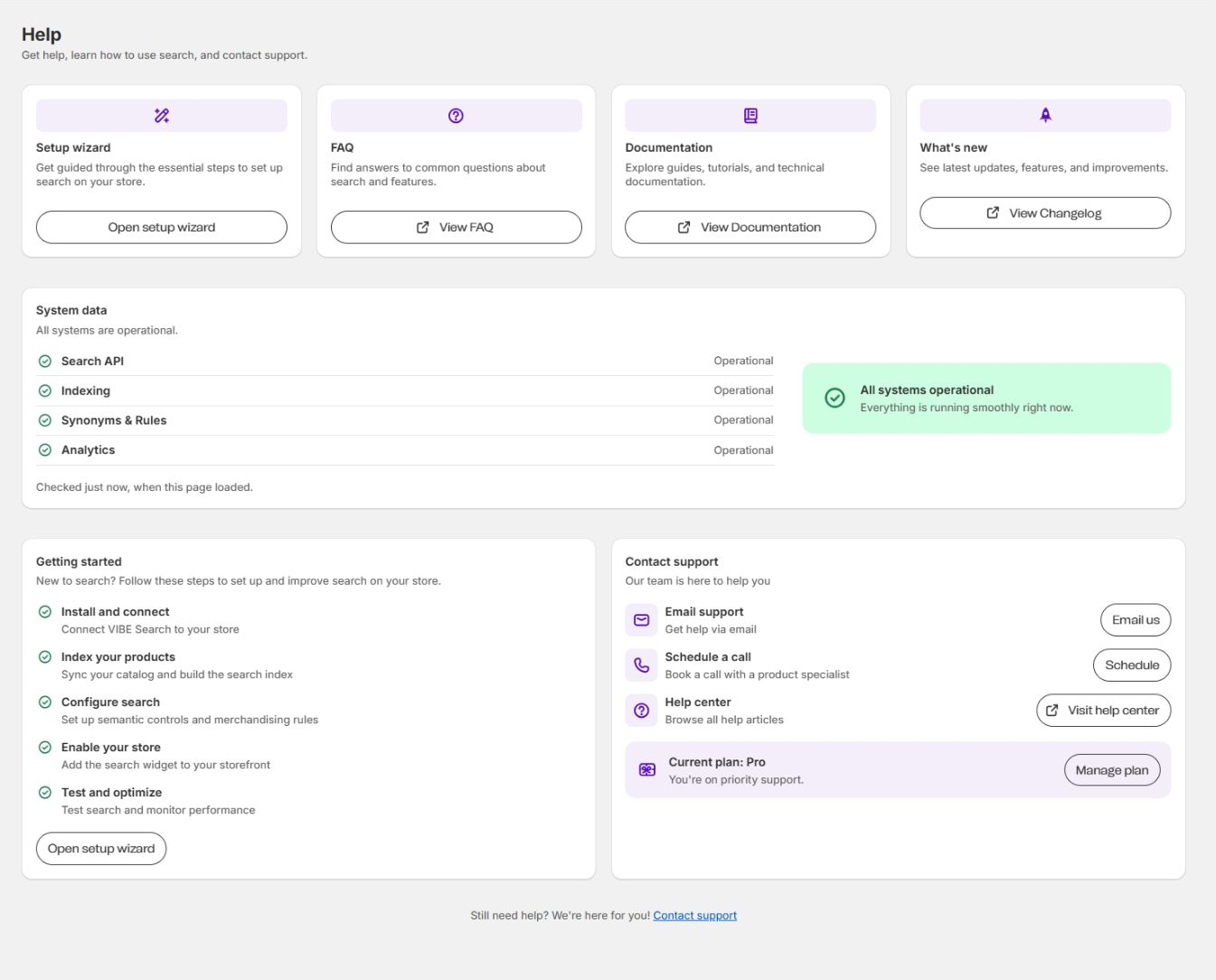
What’s on the Help page
Section titled “What’s on the Help page”Four resource cards:
- Setup wizard opens the guided storefront setup.
- FAQ answers common questions about search and VIBE’s features.
- Documentation opens the full feature and developer guides.
- What’s new opens the changelog.
Use the setup wizard when your installation is broken or unfinished. Use the FAQ when you already know the symptom. Use Documentation when you need the full picture of a workflow or setting. Use What’s new to check whether a recent release changed the thing you’re testing.
System data
Section titled “System data”The System data panel checks whether VIBE’s own services are responding: Search API, Indexing, Synonyms and rules, and Analytics. An Operational result means the service answered its connectivity check. It doesn’t check every individual search result or rule outcome.
If a service shows as degraded, include that in your support request. If everything shows Operational, reproduce the problem in Search Preview first and note the search and settings involved.
Getting started
Section titled “Getting started”The Getting started checklist walks through:
- Install and connect VIBE to your store.
- Add your products to VIBE’s copy of your catalog.
- Set up Explore controls and result rules.
- Turn on the search widget on your storefront.
- Test, then keep an eye on performance.
Select Open setup wizard to continue or repeat setup.
How to check it worked: each step you finish is marked done, and the checklist eventually shows nothing left to do.
Contact support
Section titled “Contact support”The Contact support card has:
- Email support for help by email.
- Schedule a call, which opens a prefilled email. Fill in your preferred times, timezone, store domain, and topic.
- Help center to browse every help article.
Both email options use vibe@coiagency.com.
The card also shows your current plan. See Plan and billing for the support level that comes with it.
If something looks wrong: for a specific storefront or search symptom, check Diagnose search and storefront problems before you contact support. You may find the fix faster there.
What to include in a support request
Section titled “What to include in a support request”- Your store’s
.myshopify.comdomain. - Your published theme name.
- The affected page and storefront URL.
- The exact search, control, filter, or rule involved.
- What you expected, and what actually happened.
- Roughly when the problem happened.
- Your browser and device.
- A screenshot or short recording.
- Whether Search Preview shows the same result.
- Any recent catalog, rule, or theme change, or a change to how VIBE reads your products.
For a call, select Schedule a call and fill in the prefilled email with your preferred times, timezone, store domain, and topic. Sending the email requests the call. It doesn’t automatically book a time on a calendar.