Quick search and suggestions
Quick search is the experience that appears while a shopper types in the store’s search input. It helps the shopper reach a useful product or search page before submitting a full search.

Before typing, quick search can provide immediate paths into the catalog.
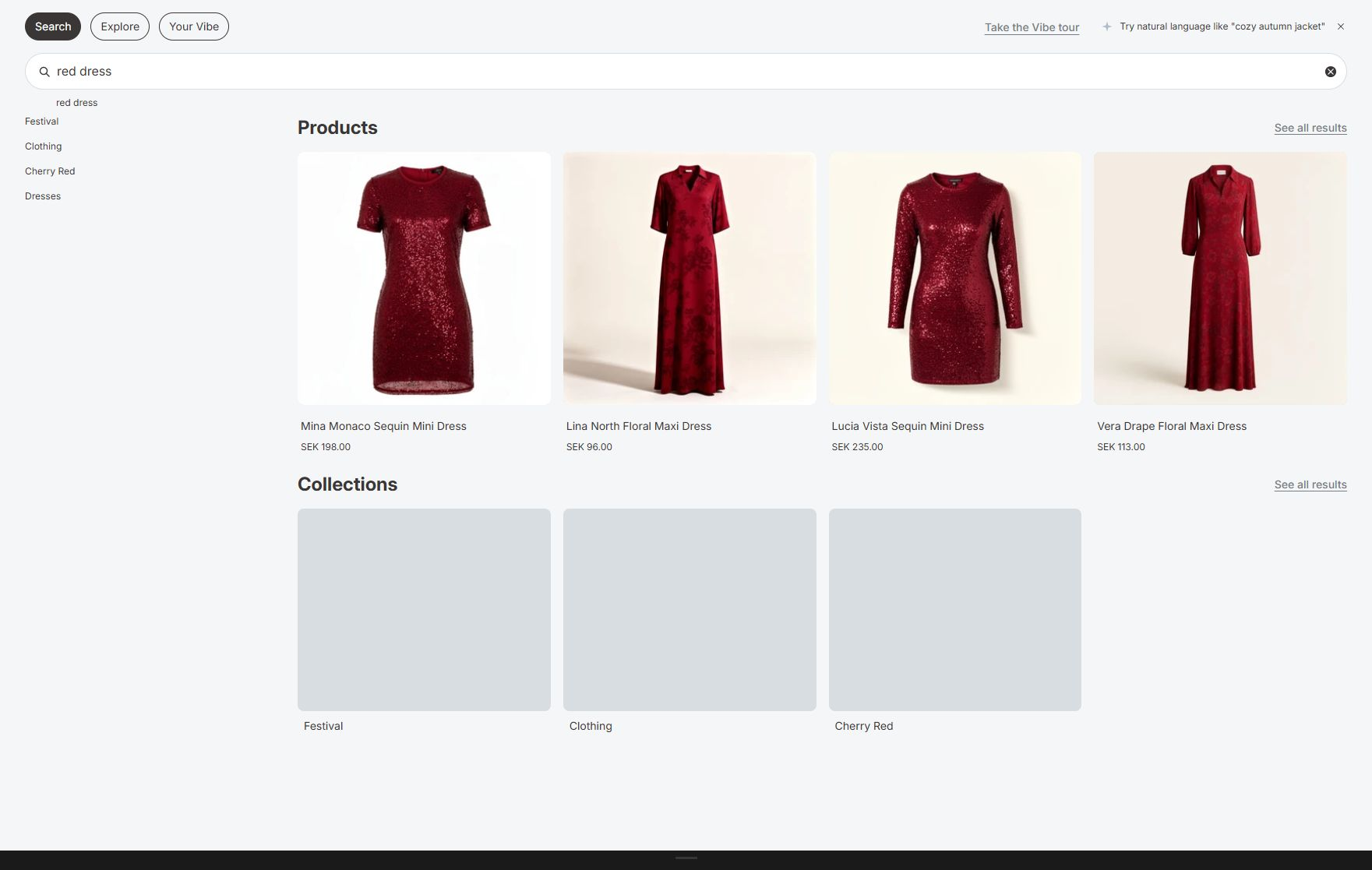
While typing, the overlay updates products and collection suggestions together.
What quick search does
Section titled “What quick search does”Quick search can return several kinds of content in one interaction:
- Product cards.
- Matching collections.
- Suggested search phrases.
- Pinned and popular searches.
- Matching articles.
- Matching store pages.
- Links to the full search page.
- Discovery actions such as Find similar, save to Your Vibe, and image search when those features are available.
The exact layout depends on the quick-search mode and the enabled discovery settings.
Why use it
Section titled “Why use it”Use quick search to:
- Reduce the number of steps from query to product.
- Help shoppers complete a partial query.
- Show important searches before enough traffic exists to make them popular.
- Surface collections, editorial content, or information pages next to products.
- Give uncertain shoppers a route into Explore.
Quick search is not a replacement for the full search page. It is the fast first layer. The full page is better for large result sets, filters, sorting, collections, and a shareable URL.
Choose a quick-search mode
Section titled “Choose a quick-search mode”- Open VIBE admin > Appearance > Quick search.
- Under Search as you type, choose one of three modes:
- VIBE’s search box: VIBE opens its own overlay and uses VIBE product cards. Choose this when you want the complete VIBE search, Explore, Your Vibe, and visual-discovery experience, when VIBE could not safely learn your theme’s card design, or when you want VIBE’s style controls to apply consistently.
- VIBE’s search box with your theme’s cards: VIBE opens its own overlay but fills the product areas with cards that match your theme. Choose this when you want VIBE’s complete interface but need product cards to look like the rest of your store, and Appearance > Installation reports the theme cards are ready.
- Your theme’s search box: VIBE works through your theme’s existing search box instead of its own overlay. Choose this when keeping your theme’s own search interaction matters more than showing every VIBE tab, and VIBE successfully found your theme’s search input.
- Select Save.
How to check it worked: open your storefront and start typing in the header search box. It should open the mode you chose. If you chose VIBE’s search box with your theme’s cards, product cards should match your store’s design.
If something looks wrong: see Search does not open.
If Appearance says your theme’s cards are not ready, use VIBE’s own cards until VIBE finishes checking your theme.
Your theme’s search box only displays what your theme’s own markup supports. VIBE’s Explore and Your Vibe tabs are not added to it, and the image-search camera button does not appear there either. Choose this mode only when keeping your theme’s native search interaction matters more than those VIBE features.
For the full picture of how search boxes and product cards work together, see Product cards and search surfaces.
Configure suggestions and discovery
Section titled “Configure suggestions and discovery”On Appearance > Quick search, review the Suggestions and discovery settings.
Suggested terms
Section titled “Suggested terms”Suggested terms help a shopper finish a partial phrase or choose a related query.
Use them when shoppers may know the category but not the exact product name. Turn them off only when the store has a highly constrained catalog and every query should go directly to products.
Pinned searches
Section titled “Pinned searches”Pinned searches are phrases you choose. They appear before automatically generated popular terms.
Use them for:
- A new collection that has not collected search traffic yet.
- A seasonal phrase.
- A product category that shoppers should notice.
- A store-specific term that differs from common language.
To add them:
- Select Add pinned search.
- Enter the phrase shoppers should see.
- Add up to four phrases.
- Drag them into the order you want.
- Select Save.
Blank entries are not saved.
How to check it worked: open quick search on your storefront before typing. Your pinned phrases should appear ahead of any automatically generated popular terms.
Popular searches
Section titled “Popular searches”Popular searches are based on storefront search activity. They become more useful after the store has real traffic.
Use pinned searches for deliberate promotion. Use popular searches to reflect actual shopper demand. Both can be enabled at the same time.
Articles and pages
Section titled “Articles and pages”Enable articles when editorial content helps answer product questions, such as a buying guide. Enable pages when shoppers commonly look for information such as sizing, delivery, returns, or store locations.
These results do not change product ranking. They provide a direct route to matching non-product content.
Result limits
Section titled “Result limits”Set the number of product, collection, and suggestion items shown in the quick experience. Keep the list short enough to scan. The full search page handles the larger result set.
What the shopper sees
Section titled “What the shopper sees”Before typing
Section titled “Before typing”Depending on the enabled settings, the initial state can contain recommended products, selected collections, pinned searches, and popular searches.
This state is useful for shoppers who open search without a query.
While typing
Section titled “While typing”VIBE waits briefly while the shopper types, then updates products, collections, suggestions, and enabled content groups. This avoids sending a new request for every keystroke.
The shopper can:
- Continue typing.
- Select a suggested phrase.
- Open a product or collection.
- Open a matching article or page.
- Use the keyboard to move through interactive items.
- Submit the query to the full results page.
- Clear the query.
- Close the overlay with its close control or the Escape key.
After selecting a product
Section titled “After selecting a product”The product link opens the product page. VIBE records the result click for Analytics when tracking is available.
Depending on your plan, product cards can also show:
- Similar, which opens visually related results.
- A star or save action, which adds the product to Your Vibe in that browser.
Plan availability
Section titled “Plan availability”- Meaning-based search and autocomplete are included on every active plan.
- Explore in search, Find similar, and Tastes require Growth or higher.
- Image search requires Pro or Enterprise.
- Exact variant matching requires Pro or Enterprise and must be turned on in how VIBE reads your products, under Sync and Index.
- Full widget styling and multilingual storefront search require Growth or higher.
Check Plan and Billing in VIBE for your store’s plan and access.
Test quick search
Section titled “Test quick search”Use a repeatable set of queries:
- Exact product: a full product title.
- Partial product: the first few letters of a known title.
- Category: a common product type.
- Intent: a phrase such as “gift for a new apartment.”
- Misspelling: a realistic typo.
- Content: an article or page phrase if those groups are enabled.
- No result: an unrelated phrase to confirm the empty state is understandable.
For each query, verify:
- The search interface opens from every header search entry point.
- The result groups match the enabled settings.
- Product images, titles, prices, and links are correct.
- The full-results link keeps the query.
- Keyboard, close, and clear actions work.
- The layout works on mobile.
If something looks wrong
Section titled “If something looks wrong”- The old theme search still opens: see Search does not open. Also check that the theme was saved and that you tested every search icon on the storefront: a custom header can use a different search box than the one VIBE found.
- Your theme’s cards are missing or look wrong: switch temporarily to VIBE’s search box with VIBE cards, then re-check your theme from Appearance > Installation. Only use theme cards once VIBE reports them ready.
- Suggestions appear but products do not: confirm the product is active and available to your sales channel, that VIBE’s copy of your catalog is up to date, that the product is not hidden by product, collection, or tag rules, that the out-of-stock setting does not hide it, and that it appears for the same query in Search Preview. See A product is completely missing.
- Articles or pages do not appear: confirm the matching discovery switch is on and that the Shopify content contains words matching the query.
- The camera button is missing: see Similar or image search is weak. Image search also needs a VIBE-owned quick-search bar; it does not appear on your theme’s native search box.
- Search works in Search Preview but not on the storefront: Search Preview does not test your theme, so if it works there, check the VIBE switch in your theme, quick-search mode, storefront language, and browser console. Include the exact storefront URL when you contact support.