Result rules
Result rules change how VIBE ranks or handles a search. A rule can boost, bury, or pin products, add a synonym, or redirect a search to a page instead of results.
Manage rules on the Merchandising page in your VIBE admin.
What you can do here
Section titled “What you can do here”- Create, edit, reorder, turn on or off, and delete rules.
- Choose from six rule types: Boost, Bury, Pin, Redirect, Synonym, and Behavioral.
- Import many rules at once from a CSV or JSON file.
- Review how your rules are performing.
Choose the right rule type
Section titled “Choose the right rule type”Pick the rule type that matches what you want to change:
Boost pushes chosen products or product groups higher for matching searches. Use it to put new arrivals, high-margin items, in-season stock, or a promoted brand near the top of results shoppers already see.
Bury pushes chosen products or product groups lower without hiding them. Use it for end-of-line, low-stock, out-of-season, or low-margin products you still want available but not front and center.
Pin locks one product to a fixed position for a search. Use it when a specific product must always hold a set slot for a key search, for example pinning your hero product to the top of “gift.”
Synonym treats different words as the same search, so “sneakers” and “trainers” return the same products. Use it for regional wording, brand nicknames, abbreviations, and common misspellings, so shoppers find products whichever word they use.
Redirect sends a search straight to a page instead of showing results. Use it for searches that are really navigation, for example sending “sale,” “shipping,” or “size guide” to the right page.
Behavioral reorders close matches using how shoppers have responded to that search before.
Boost, Bury, and Pin are available on every plan. Redirect, Synonym, and Behavioral require Growth or higher. Boosting a specific variant requires Pro. Check Plan and billing for your current plan.
The rules list
Section titled “The rules list”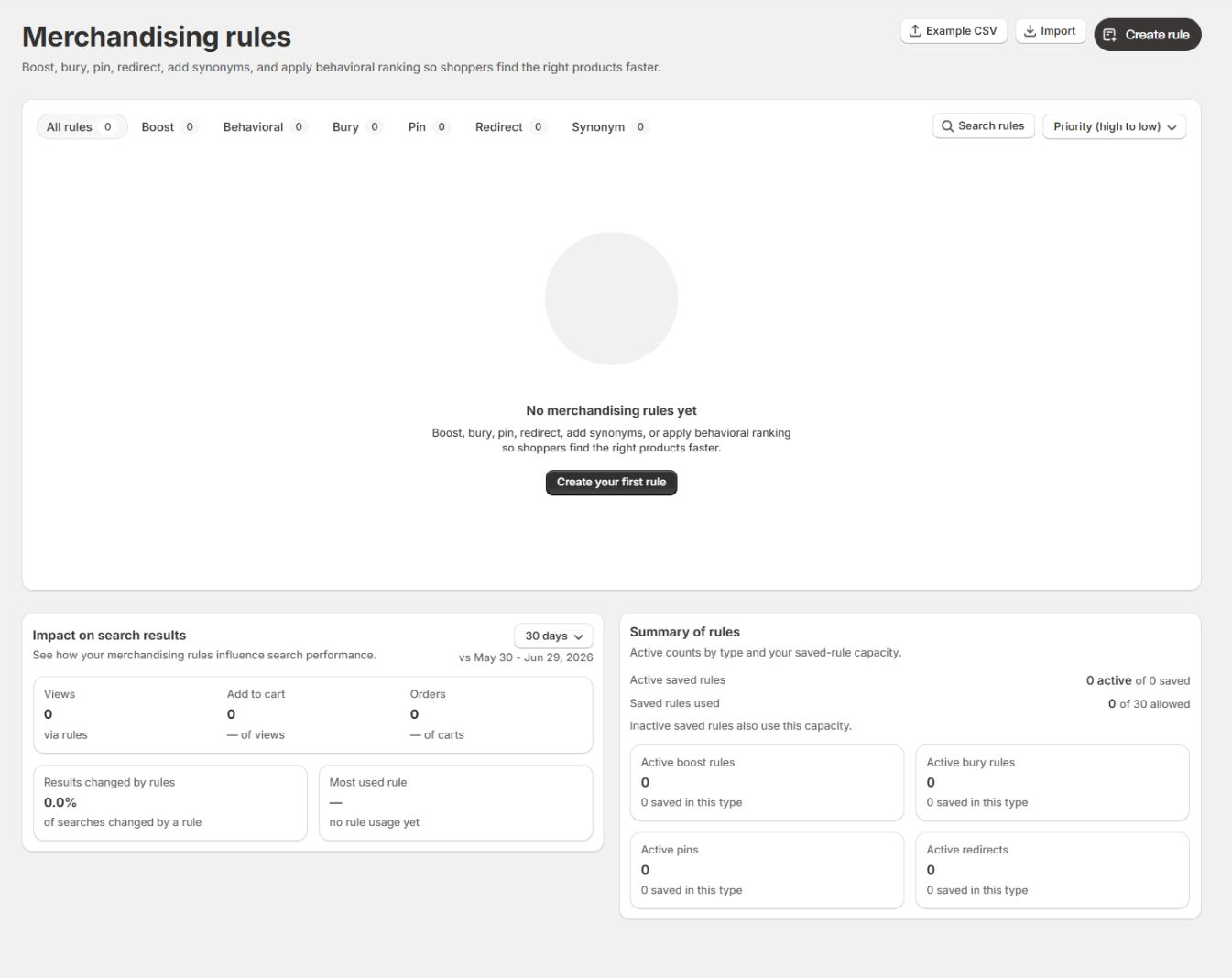
The table lists every rule you’ve created. Each row shows:
- Priority, the order a rule applies in when several rules match the same search. Higher priority applies first.
- Rule name and the search it was built from.
- Type, shown as a colored tag.
- Trigger, the search the rule responds to.
- Action, a plain description of what the rule does.
- Searches affected, how many searches the rule changed, with the share of total searches.
- Orders and Revenue influenced, the sales tied to the rule.
- Status, an on or off switch.
- Last edited, and the row Actions (edit and delete).
Above the table you can:
- Filter by type with the All rules, Boost, Behavioral, Bury, Pin, Redirect, and Synonym tabs. Each tab shows a count.
- Search rules by name or trigger.
- Sort with the Priority (high to low) control.
Create a rule
Section titled “Create a rule”- Select Create rule in the top right.
- Choose the rule type.
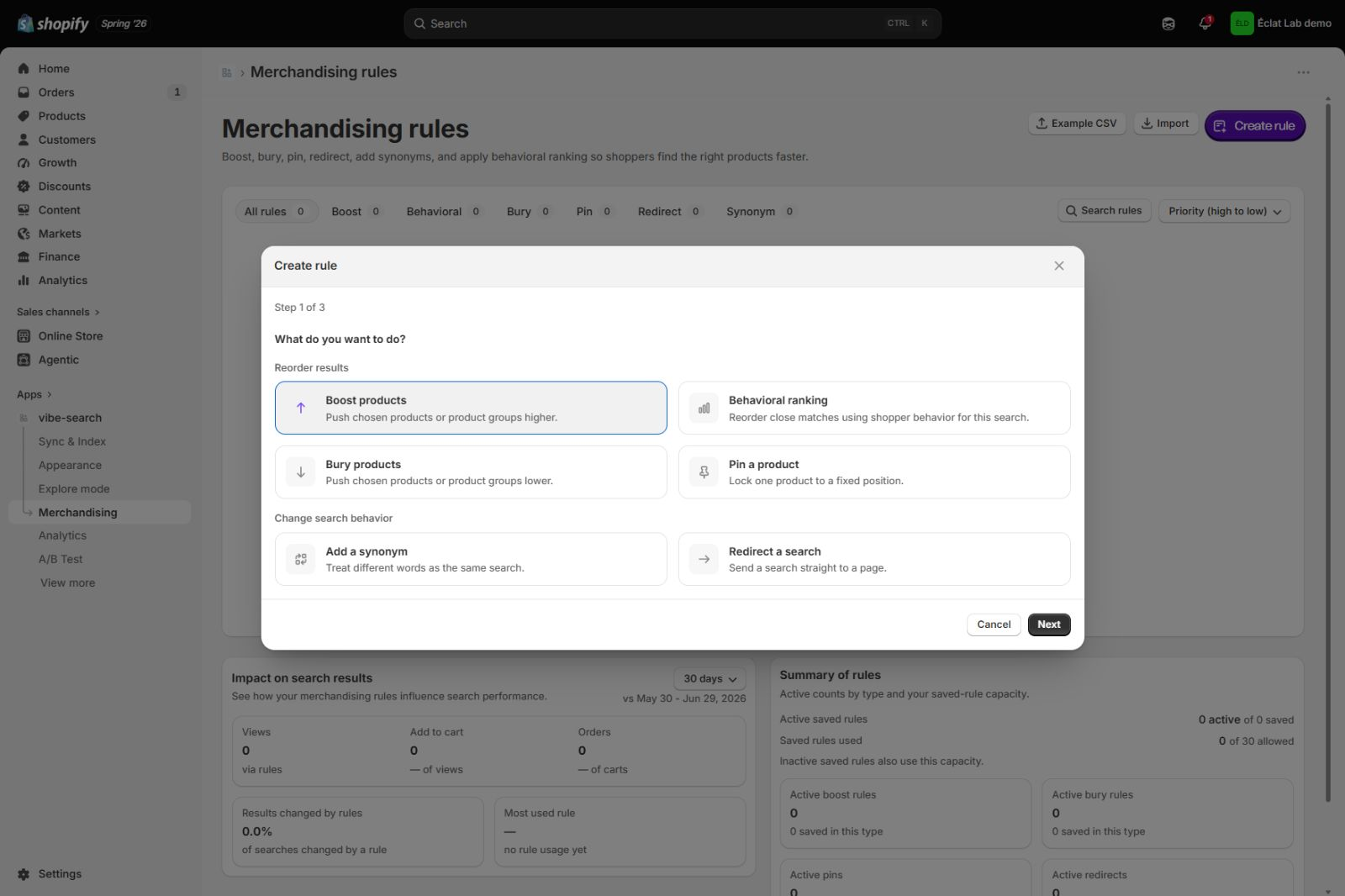
Pick one of the types available for your plan and for how VIBE reads your products. The wizard groups them into Reorder results (Boost, Behavioral, Bury, Pin) and Change search behavior (Synonym, Redirect). Variant boosting appears under Boost on Pro and Enterprise when variant search is turned on. This example uses Boost products.
- Select Next, then set the trigger and what to boost.
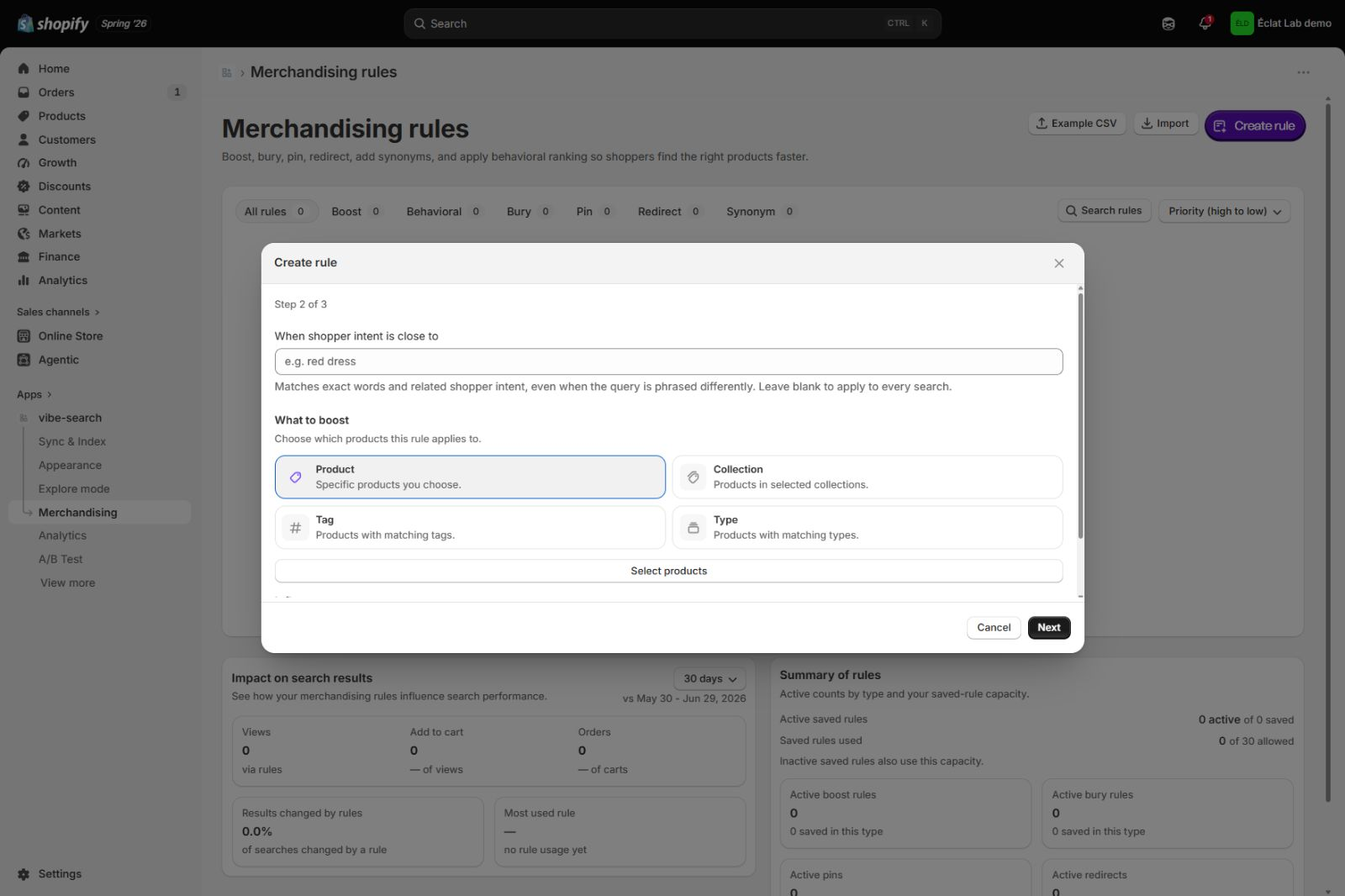
- When shopper intent is close to is the trigger. Type the search you want the rule to respond to. VIBE matches the exact words and closely related searches, even when a shopper phrases it differently. Leave it blank to apply the rule to every search.
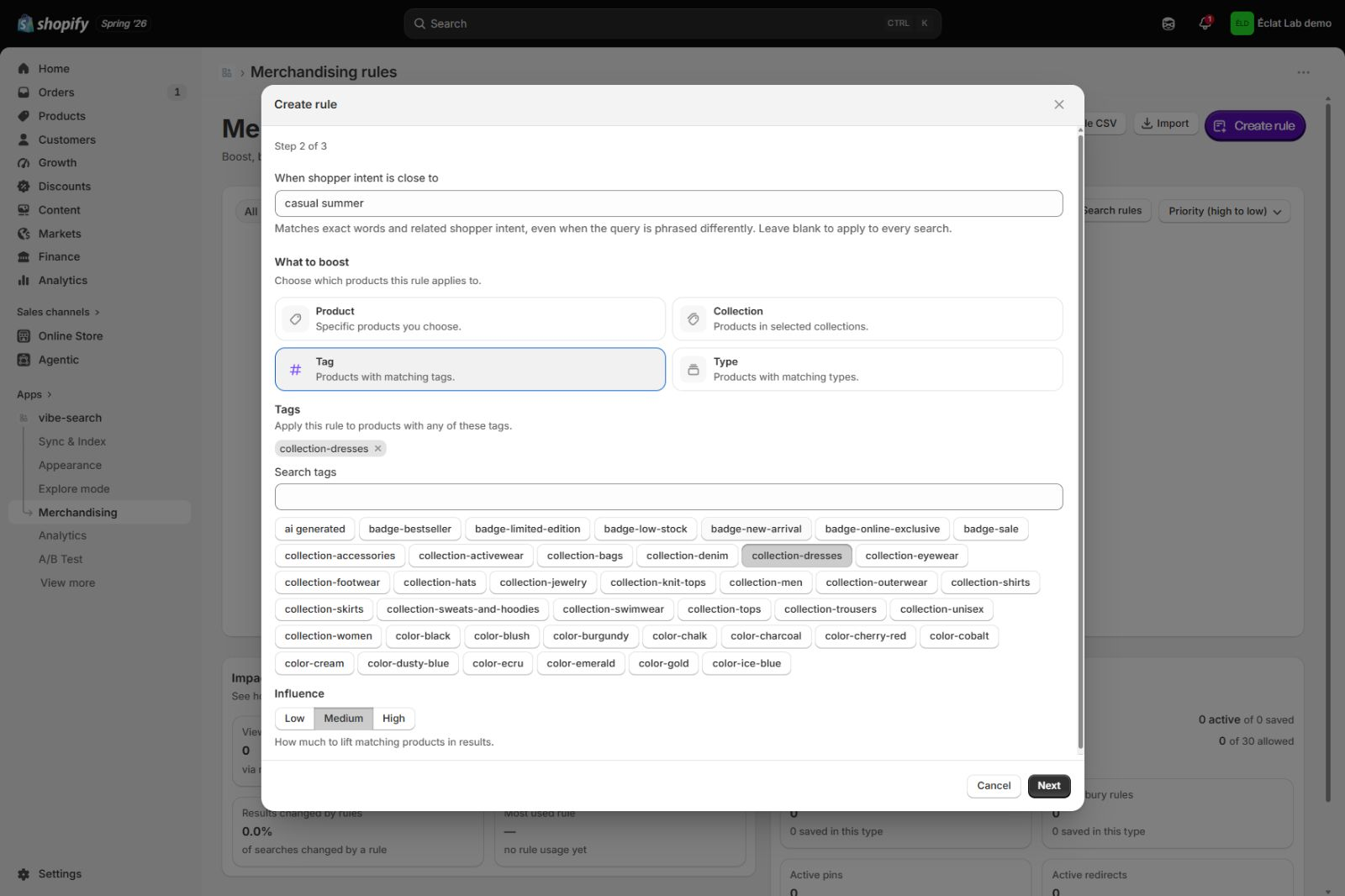
- What to boost is the group of products the rule acts on. Choose Product, Collection, Tag, or Type, then select the specific products, collection, tags, or types.
- How strong sets how far matching products move: Low, Medium, or High.
For example: trigger “casual summer,” target type Tag, tag collection-dresses, strength Medium.
- Select Next, then set the timing and priority.
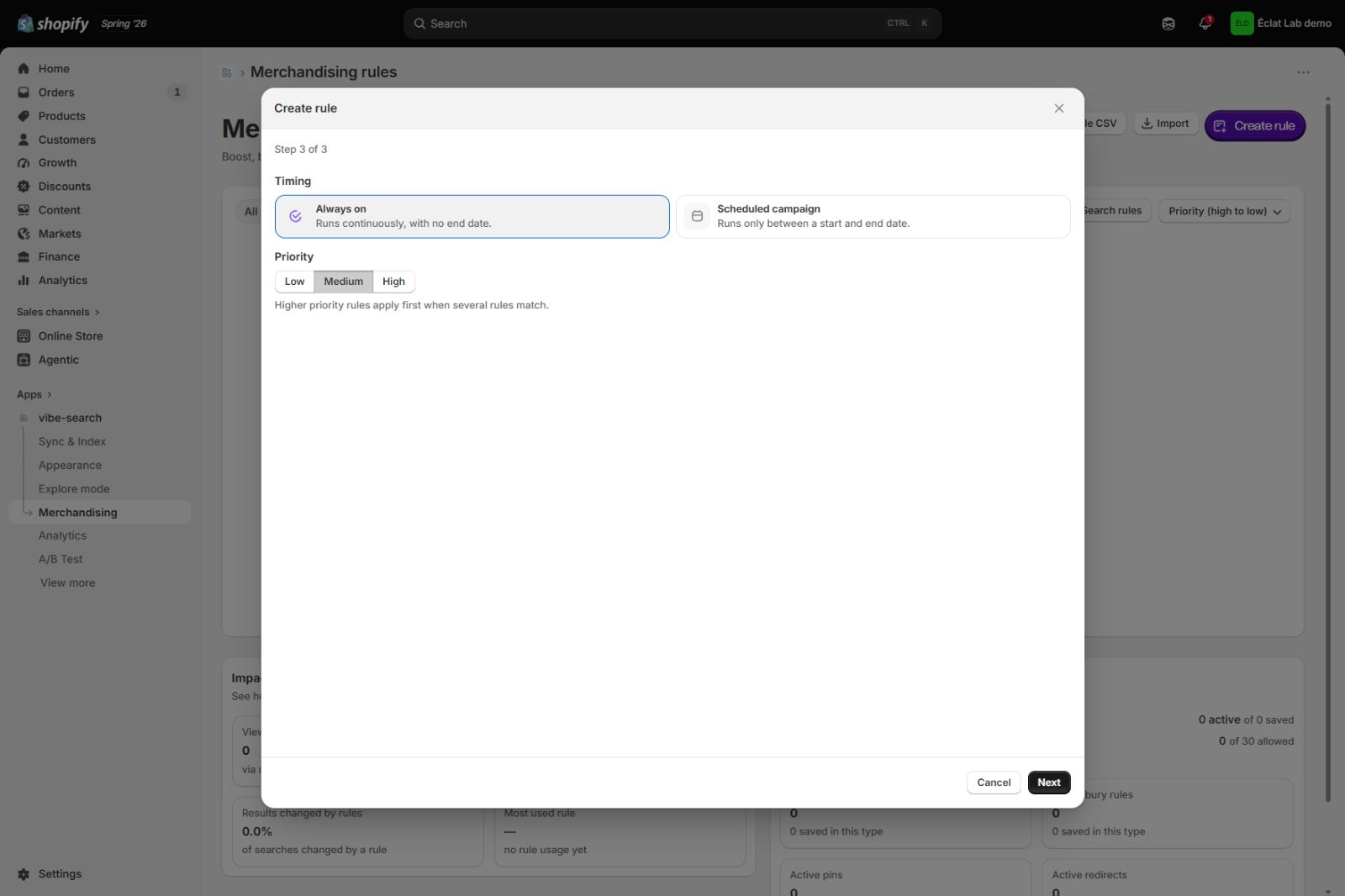
- Timing is Always on on every plan. Pro and Enterprise can choose Scheduled campaign, which runs the rule only between a start and end date.
- Priority is Low, Medium, or High. When several rules match the same search, higher priority applies first.
- Select Next to create the rule.
How to check it worked: the new rule appears in the rules list with Status on. Active rules apply to live search immediately. Confirm it in Search Preview.
How the other types differ in step 2
Section titled “How the other types differ in step 2”Step 1 (choosing type) and step 3 (timing and priority) are the same for every type. Step 2 changes to fit the action:
- Bury matches Boost, but the strength setting lowers products instead of lifting them.
- Behavioral reorders close matches using shopper behavior for that search; there’s nothing else to configure.
- Pin asks for the one product to lock and the position to hold it in.
- Synonym asks for the words to treat as equal.
- Redirect asks for the search to catch and the page to send it to.
Choosing what to act on
Section titled “Choosing what to act on”For Boost and Bury, step 2 asks what the rule applies to. You have four ways to pick the products:
- Product acts on specific products you choose by hand. Use it for a small, exact set, for example boosting three hero products.
- Collection acts on every product in the collections you select. Use it to lift or lower a whole merchandised group at once, for example boosting your “New in” collection. Products added to the collection later are covered automatically.
- Tag acts on every product carrying the selected tags. Use it for groups that cut across collections, for example “vegan,” “waterproof,” or “casual.”
- Type acts on every product of the product types you select. Use it for broad category moves, for example burying “Accessories” for a clothing search.
Collection, Tag, and Type rules follow catalog changes automatically. Product rules apply only to the products you picked.
Edit, turn off, reorder, or delete a rule
Section titled “Edit, turn off, reorder, or delete a rule”- Edit: select the edit icon in a rule’s Actions column. The same three-step wizard opens, titled Edit rule, with your current settings filled in.
- Turn off: use the Status switch on a rule’s row. Off keeps the rule and its settings but stops it from affecting search. Turn it back on anytime.
- Reorder: set priority in step 3 when you create or edit a rule, or drag a row by its handle on the left to reorder rules directly in the list.
- Delete: select the delete icon in a rule’s Actions column. There is no confirmation step, and deleting cannot be undone, so turn a rule off if you only want to pause it.
Import rules in bulk
Section titled “Import rules in bulk”To add many rules at once:
- Select Import and choose a CSV or JSON file.
- If you need a starting point, select Example CSV first to download
vibe-rules-example.csv, a ready-made file you can edit and upload back without reformatting.
The template has five columns and one row per rule:
ruleType,triggerQuery,target,priority,activeboost,summer hat,"{""targetScope"":""collections"",""collections"":[""Summer""],""boostFactor"":2}",5,trueboost,wedding guest outfit,"{""productIds"":[""2222222222""],""boostFactor"":1.5,""triggerMode"":""semantic"",""startsAt"":""2026-06-01"",""endsAt"":""2026-06-30""}",5,truebury,clearance,"{""targetScope"":""tags"",""tags"":[""clearance""],""buryFactor"":0.3}",10,truepin,bestsellers,"{""productId"":""1111111111"",""position"":1}",1,trueredirect,sale,"{""url"":""/collections/sale""}",1,truesynonym,bag,"{""terms"":[""bag"",""purse"",""handbag""]}",5,trueReading the columns:
- ruleType is
boost,bury,pin,redirect, orsynonym. - triggerQuery is the search the rule responds to.
- target is a JSON object describing what the rule acts on:
- Boost or bury: a
targetScopewithcollections,tags,vendors, orproductTypes, or a list ofproductIds, plus aboostFactororburyFactor. AddtriggerMode: "semantic"to match by intent rather than exact words, andstartsAtandendsAtto schedule a campaign window. - Pin: the
productIdand thepositionto lock it to. - Redirect: the
urlto send the search to. - Synonym: the
termsto treat as equal.
- Boost or bury: a
- priority is a number. Higher applies first.
- active is
trueorfalse.
How to check it worked: the imported rules appear in your rules list.
The double quotes inside the target column are how CSV escapes quotes inside a field, so leave them as they are. The importer only accepts rule types available on your current plan. Use import for large sets of synonyms or boosts rather than creating them one by one.
Try a few recipes
Section titled “Try a few recipes”Boost new arrivals when shoppers search “summer.”
- Tag your new summer products with a shared tag in Shopify, for example
summer-new. - Select Create rule and choose Boost products.
- Set the trigger to “summer,” choose Tag, and select
summer-new. Set the strength to Medium or High. - Choose Always on (or, on Pro and Enterprise, a Scheduled campaign for the season). Set a priority and save.
Shoppers searching “summer” now see your new arrivals near the top.
Send “sale” straight to your sale page.
- Select Create rule and choose Redirect a search (Growth and above).
- Set the trigger to “sale.”
- Set the destination to your sale collection, for example
/collections/sale, and save.
A search for “sale” now takes shoppers straight to the page instead of a results list.
Treat “sneakers” and “trainers” as the same search.
- Select Create rule and choose Add a synonym (Growth and above).
- Enter the words to treat as equal,
sneakersandtrainers, and save.
Shoppers find the same products whichever word they use. The same pattern fixes common misspellings and regional wording.
Understand how your rules are performing
Section titled “Understand how your rules are performing”The Merchandising page reports how your rules perform, over the period set by the date control on the Impact on search results card (for example, 30 days), compared with the period before it:
- Each rule’s row shows Searches affected, Orders, and Revenue influenced.
- The Impact on search results card shows the funnel for searches your rules changed: views, add-to-cart, and orders, plus your Most used rule.
- A summary section shows how many rules are active, how many you’ve saved in total against your plan limit, and a breakdown by type.
Compare how often a rule fires with the orders and revenue it’s tied to. Consider changing or turning off a rule that fires often but hasn’t helped create any sales.
Searches affected is how many searches the rule changed in the period, with the share of all searches shown below it. A search is affected when the rule fired on it.
Orders is the number of orders from shoppers whose search this rule changed. Revenue influenced is the revenue from those orders. This is influence, not split credit: when several rules fire on the same search, each rule is credited the full amount, so figures across rules can overlap. Read it as how much revenue each rule touched, not a division of sales.
In the Impact on search results card: Results changed by rules is the share of all searches that at least one rule changed, shown against the previous period. Views is how many products shoppers viewed in visits where a rule fired. Add to cart is how many of those shoppers added to cart, as a share of views. Orders is how many of those visits ended in an order, as a share of carts. Most used rule is the rule that changed the most searches, with its share. The small sparklines show the day-by-day trend for each metric.
In the summary section: Active saved rules is how many saved rules are switched on, out of how many you’ve created. Saved rules used is your plan-wide capacity count; inactive rules still count because they’re stored and can be switched back on. The tiles below break active rules down by type, plus how many saved rules exist in each type.
Troubleshooting
Section titled “Troubleshooting”My rule is not changing results. Check that the rule is active, the trigger matches your test search, its priority is correct, and VIBE’s copy of your catalog has updated since you last changed the target. Confirm the result in Search Preview. See also A product ranks too low.
Why can’t I create a Redirect or Synonym rule? Redirect and Synonym require Growth or higher. Boosting a specific variant requires Pro. See Plan and billing.
Why is Scheduled campaign disabled? Scheduling requires Pro or Enterprise. On Starter and Growth, keep the rule set to Always on and turn it off manually when the campaign ends.
Why is Behavioral missing? Behavioral ranking requires Growth or higher. It also needs enough shopper activity before it can meaningfully reorder close matches.
What happens if two rules match the same search? Both apply, in priority order, with the higher-priority rule applied first. Use the Priority setting, or drag rules in the list, to decide which wins.
If something looks wrong beyond what is covered here, see Diagnose search and storefront problems.