Full search results page
The full search results page is the store’s /search destination. It gives shoppers more space than quick search for a large result set, collections, filters, sorting, Explore, and Your Vibe.
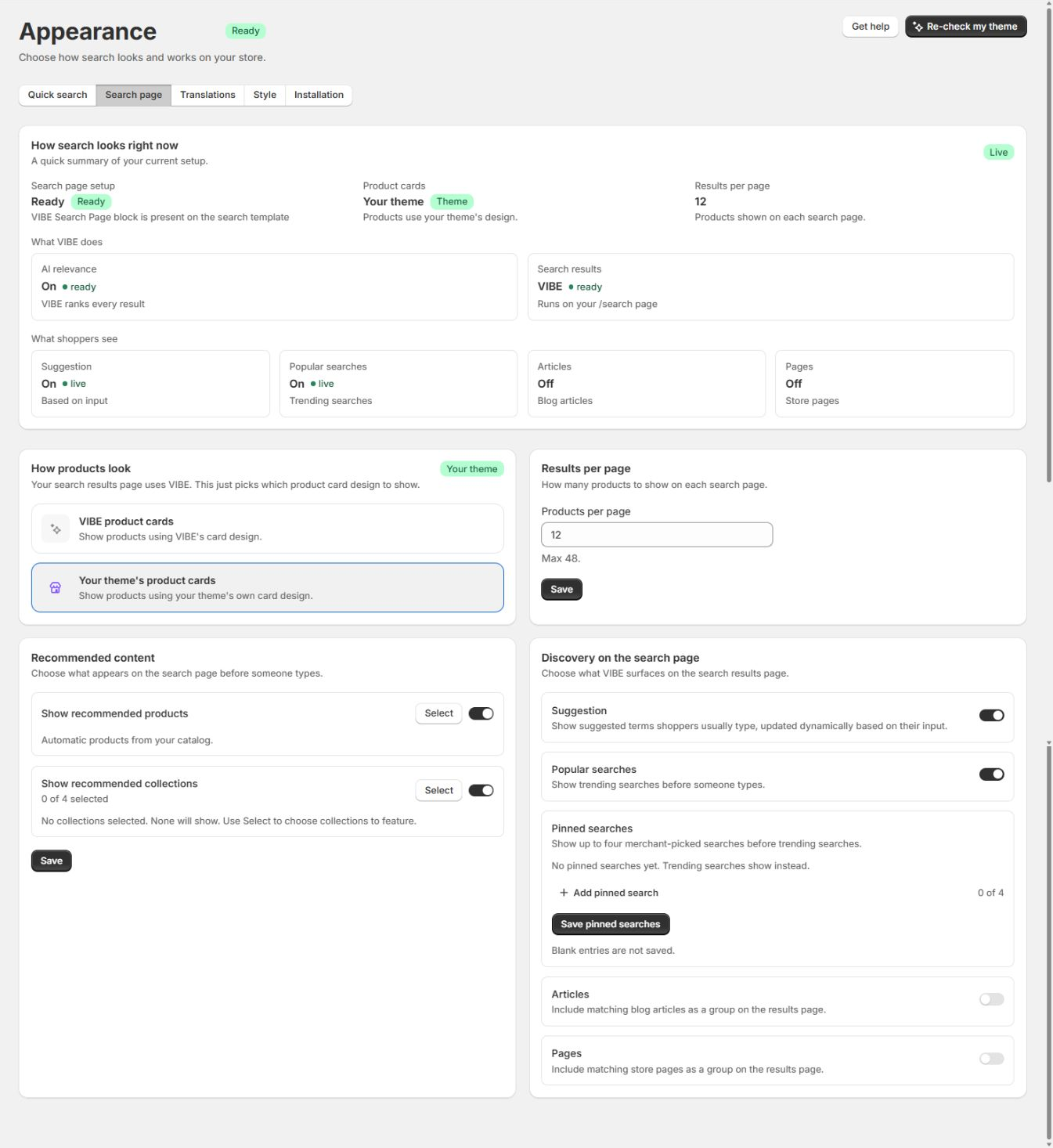
You configure the search template and product-card mode under Appearance.
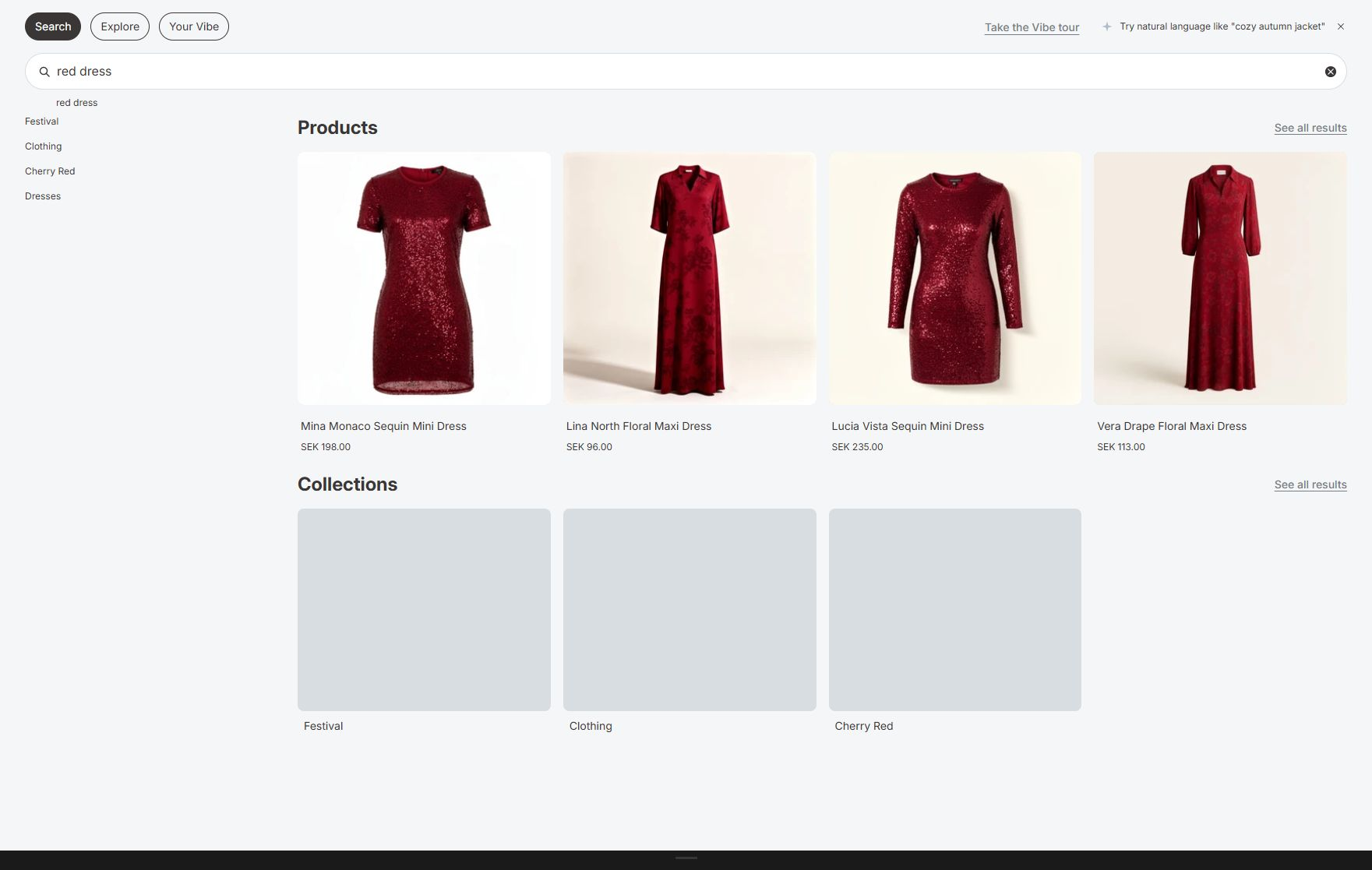
The full page continues the query and expands the controls available to the shopper.
What the page does
Section titled “What the page does”The VIBE Search Page app block mounts the VIBE interface on the Shopify search template. The page can show:
- A search input with the current query.
- Search, Explore, Similar, and Your Vibe tabs when available.
- Product and collection result types.
- Result counts and the visible result range.
- Sorting.
- Shopify Search and Discovery filters.
- Product cards using VIBE or the analyzed theme.
- Load-more navigation.
- Recommended products and collections before the first query.
- Pinned, popular, and suggested searches.
- Matching articles and pages.
- Find similar, save, and image-search actions when enabled.
Why use the VIBE search page
Section titled “Why use the VIBE search page”Use the full page when shoppers need to:
- Compare many products.
- Narrow a broad query.
- Switch between product and collection results.
- Share or revisit a search URL.
- Move between text search and guided discovery.
- Review saved products and related recommendation boards.
Quick search should lead into this page when the shopper wants the complete result set.
Install the Search Page app block
Section titled “Install the Search Page app block”- Open VIBE admin > Appearance > Search page.
- Find Search page setup.
- Select the Theme Editor action VIBE shows you.
- Confirm you are editing the search template.
- Add or enable the Search Page app block.
- Place it where search results should appear.
- Save the theme.
- Return to VIBE and re-check the setup.
How to check it worked: Appearance > Installation reports the search page as ready, and searching on your storefront opens the VIBE results page.
If something looks wrong: if your theme’s original search-results section is still visible, see The full search page shows the old results. The VIBE block and your theme’s own results should never produce two competing result lists.
Choose product cards
Section titled “Choose product cards”- Open Appearance > Search page > How products look.
- Choose one of two card types:
- VIBE product cards: VIBE controls the image, title, price, actions, spacing, and grid. Style settings on the Appearance page apply to these cards. This is the most predictable setup.
- Your theme’s product cards: use theme cards once the Installation tab confirms they are ready. VIBE renders your own card design so products keep looking like the rest of your storefront. Re-check your theme after publishing a new one before relying on this mode.
- Select Save.
How to check it worked: the full search page shows the card type you chose.
If something looks wrong: see Products are correct, but cards look wrong.
Read Product cards and search surfaces for the full picture of how cards render, who styles them, and what happens when a theme card cannot be shown.
Configure the page before a query
Section titled “Configure the page before a query”The initial search page can help a shopper who has not entered a query.
Recommended products
Section titled “Recommended products”Enable recommended content to show products before the shopper searches. Use it to avoid an empty page and provide a useful starting point.
Starting collections
Section titled “Starting collections”Choose up to four collections for the initial page content. Use broad, recognizable collections rather than narrow campaign groupings.
These Appearance selections are different from Explore’s starting-collection controls. Appearance controls initial search-page content. Explore mode controls the collection choices used inside guided browsing.
Pinned and popular searches
Section titled “Pinned and popular searches”Pinned searches are merchant chosen and ordered. Popular searches are based on storefront activity. Pinned terms appear before automatic popular terms.
How text results work
Section titled “How text results work”When the shopper submits a query, VIBE combines keyword and meaning-based matching. The page updates its query heading, product count, collection count, and result content.
Products
Section titled “Products”The Products result type shows the ranked product set. Product visibility, availability handling, how VIBE reads your products, result rules, and filters all affect what appears.
Collections
Section titled “Collections”When collection search is enabled, the Collections result type shows matching collections. Selecting a collection opens that collection.
If collection search is disabled or no collection matches, the Collections choice may be unavailable for that query.
Articles and pages
Section titled “Articles and pages”Matching articles and pages can appear as supporting links around the primary result experience when their discovery settings are enabled.
Sort results
Section titled “Sort results”The available sort choices are:
- Relevance
- Price: low to high
- Price: high to low
- Newest
Visual searches such as Find similar and image search are ordered by visual match and do not use the normal sort control.
Relevance uses VIBE’s ranking and any result rules you have set up. Price and newest apply the selected ordering instead.
Filter results
Section titled “Filter results”VIBE uses filters configured in Shopify Search and Discovery.
Typical filters include:
- Availability.
- Price.
- Product type.
- Vendor.
- Product options such as color or size.
- Supported product or variant metafields.
On desktop, filters appear in the side area. On mobile, the Filter action opens a drawer. The shopper can combine filters, clear all filters, and set a minimum or maximum price when a price filter is available.
To refresh the filter list:
- Configure filters in Shopify Search and Discovery.
- Open VIBE admin > Explore mode.
- Select Refresh filters from Shopify.
- Confirm the filters are enabled.
- Test them on the search page.
How to check it worked: the filter appears on your storefront and narrows the result set correctly.
If something looks wrong: see Filters are missing.
Use filters for exact facts, such as size or price. Use Explore controls for preferences and concepts, such as “more casual.”
Load more products
Section titled “Load more products”The page loads products in batches based on Results per page in Appearance, up to the supported limit shown in the admin.
When more results are available, the shopper can load the next batch. The result count and visible range update. A broad query should be tested through at least two batches before launch.
Explore, Similar, and Your Vibe tabs
Section titled “Explore, Similar, and Your Vibe tabs”Depending on the plan and enabled settings:
- Explore opens guided browsing with Explore controls, collections, and filters.
- Similar appears after a shopper selects Find similar on a product.
- Your Vibe shows saved products and related recommendation boards.
The full search page keeps these experiences in one destination. The shopper can return to Search without leaving the page.
See Explore and Smart Filters and Visual discovery and Your Vibe.
Image search
Section titled “Image search”On Pro and Enterprise, a VIBE-owned search bar can show an Image search action when image matching is ready and the feature is enabled.
The shopper:
- Selects Image search.
- Uploads a supported image.
- Confirms Search similar items.
- Reviews visual matches in the normal product area.
- Removes the image to return to the previous text-search state.
Mobile behavior
Section titled “Mobile behavior”Test the page at a real mobile width. Confirm:
- The search input remains usable.
- Tabs do not block the close or navigation controls.
- Product cards use two readable columns or the intended mobile layout.
- Sort opens and applies its selected choice.
- Filter groups expand, apply, and clear.
- Explore controls and collection choices remain reachable.
- Sticky elements do not cover the last result or load-more action.
- Product-card actions can be tapped without opening the wrong product.
Expected result
Section titled “Expected result”A correctly configured page should:
- Open from a submitted header search.
- Keep the submitted query visible.
- Show relevant products and collection counts.
- Use the chosen product-card mode.
- Apply sort and filter changes without losing the query.
- Load additional results.
- Open product and collection links correctly.
- Show a useful empty state for a no-result query.
- Record shopper activity in Analytics.
Test cases
Section titled “Test cases”Exact known product
Section titled “Exact known product”Search the complete product title. Confirm the intended product is near the top and the product link is correct.
Broad category
Section titled “Broad category”Search a product type with many matches. Test sorting, two filters, clearing filters, and load more.
Intent query
Section titled “Intent query”Search a need rather than a title, such as “comfortable shoes for city walking.” Confirm the result set makes sense and compare it with Search Preview.
Collection query
Section titled “Collection query”Search a collection name. Confirm collection results appear if collection search is enabled.
Variant query
Section titled “Variant query”On Pro or Enterprise with variant search enabled, search a precise option combination. Confirm the intended variant can be matched and the product card leads to the correct product context supported by the theme.
No-result query
Section titled “No-result query”Use an unrelated phrase. Confirm the page shows the editable no-results title and hint, plus the Search again action.
If something looks wrong
Section titled “If something looks wrong”- The page shows no VIBE interface: confirm the VIBE switch is on in your theme, the Search Page app block is present on the published theme’s search template, the theme was saved, and you are testing the right market, language, and theme.
- Two result lists appear: see The full search page shows the old results.
- Products appear in quick search but not the full page: check the product-card mode, the Search Page block, result filters, URL parameters, and page-specific discovery settings. Clear filters and switch sorting back to Relevance before comparing.
- Filters are missing: see Filters are missing.
- Theme cards look different after publishing a new theme: open Appearance > Installation, re-check the new theme, and review the theme-card readiness status. Switch to VIBE cards while the new theme is being verified.
- Result order differs from Search Preview: see A product ranks too low. Reset sorting to Relevance and clear filters, then confirm the storefront and Search Preview use the same query, language, and market.