Catalog and theme change playbook
Catalog and theme changes affect different parts of VIBE. This playbook tells you when VIBE catches up on its own, when to update its copy of your catalog yourself, and when to re-check your theme.
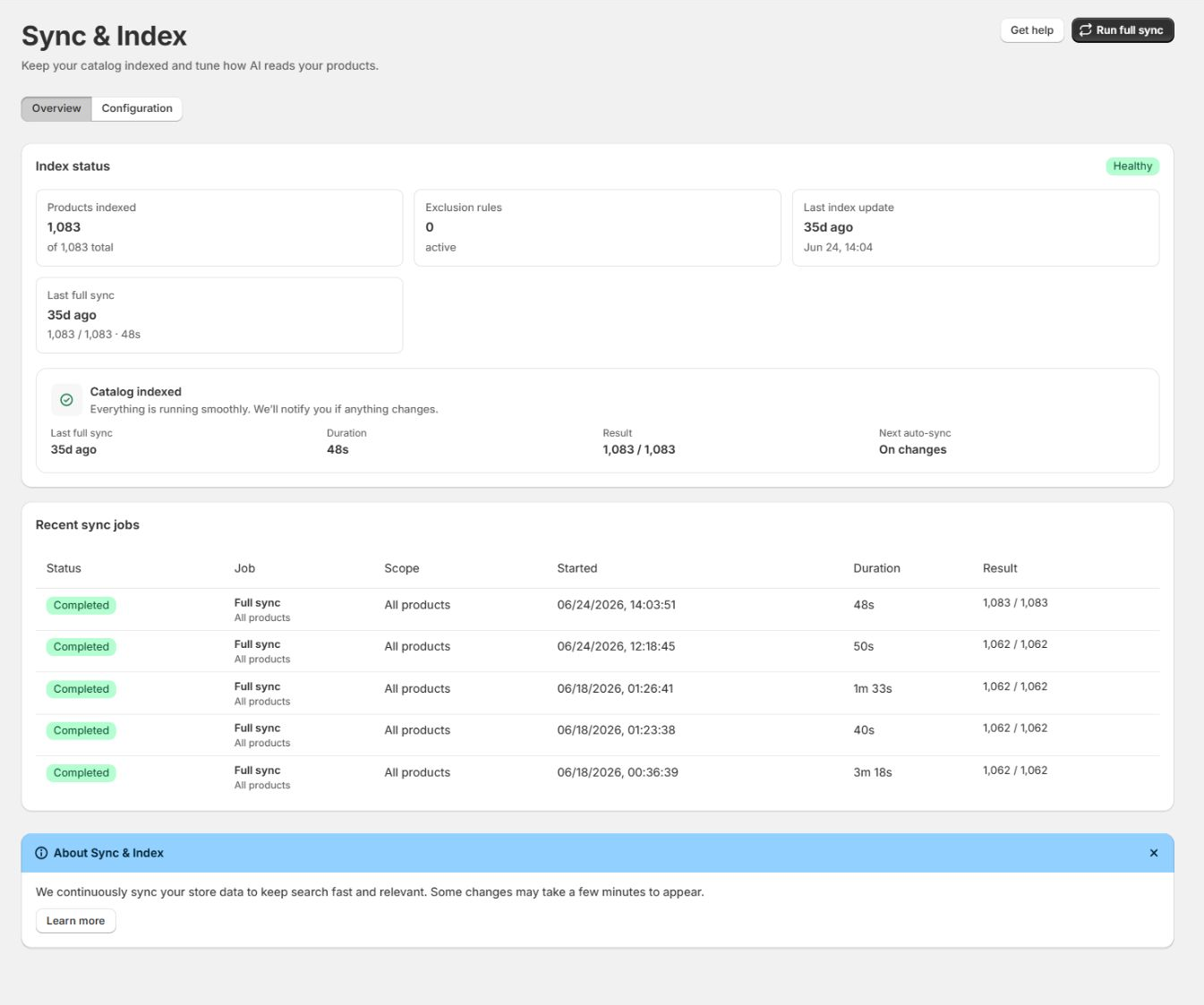
Catalog changes show up here, either as an automatic update or a full catalog update job.
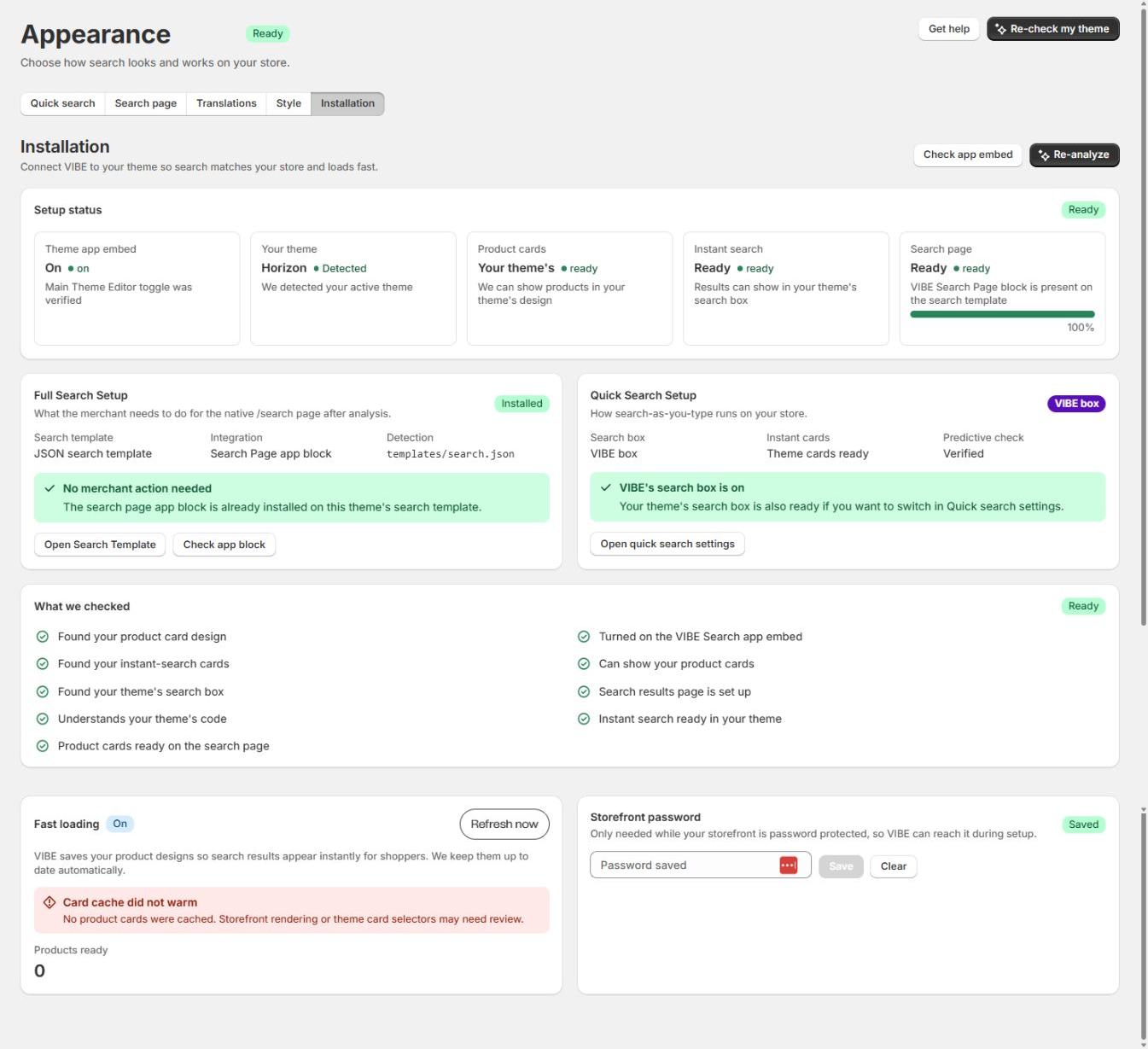
Theme changes need their own readiness check here, separate from the catalog.
Change classification
Section titled “Change classification”Before you act, work out what kind of change you’re dealing with.
| Change | What it affects | What to do |
|---|---|---|
| One title, description, tag, image, or variant edit | Your catalog | Wait for the automatic update, then test |
| A large import or bulk edit | Your catalog | Select Run full sync |
| Product publication or status change | Which products VIBE can show | Wait for the automatic update; select Run full sync if the change is broad |
| A product, collection, or tag exclusion | Which products VIBE can show | Wait for the update; select Run full sync if it’s broad or urgent |
| An out-of-stock setting change | How results are ordered | Test on your next search |
| Turning on collection or variant search | How VIBE reads your products, and VIBE’s copy of your catalog | Let the setting activate and the queued update finish |
| A product or context image source change | How VIBE reads your products, and VIBE’s copy of your catalog | Run the required update, then check visually |
| A product-card CSS or markup change | Theme presentation | Re-check your theme and refresh prepared cards |
| A newly published theme | Theme setup | Turn on the switch and block, then re-check your theme |
| A new storefront language | Content | Select Sync languages, translate, and test in that language |
| A rule or control edit | Ranking, immediately | Test right away; no catalog update needed |
One product changed
Section titled “One product changed”Use this when you edit a single product.
- Save the product in Shopify.
- Confirm it’s still Active and published to the Online Store.
- Wait for VIBE’s automatic update.
- Open Sync and Index and confirm the latest activity.
- Search the exact product name in Search Preview.
- If the old value is still showing, check the product’s data in VIBE’s copy.
- Test the same search a shopper would use, on the storefront.
How to check it worked: Search Preview and the storefront both show your updated product.
If something looks wrong: see A product is completely missing. Select Run full sync if the automatic update never arrives, or if this product was part of a wider change.
I’m importing or bulk-editing a lot of products
Section titled “I’m importing or bulk-editing a lot of products”Before you import
Section titled “Before you import”- Note any VIBE exclusions and rule targets tied to the products you’re about to change.
- Confirm the import sets status, publication, tags, types, collections, variants, images, and metafields the way you expect.
- Confirm how VIBE reads your products matches the image and variant structure you’re importing.
- Prepare a short list of test searches that represent your catalog.
After you import
Section titled “After you import”- Spot-check a few products in Shopify.
- Select Run full sync.
- Don’t start a second catalog update while one is still running.
- Watch the product, variant, and collection progress.
- If the job finishes Partial, select Finish sync.
- Look into any products that keep failing.
- Test exact names, broad categories, natural-language searches, synonyms, variants, and collections.
- Confirm exclusions and out-of-stock behavior are correct.
- Wait for real shopper traffic before judging Analytics: it needs genuine activity after the import, not just the import itself.
How to check it worked: the product count on Sync and Index > Overview matches your catalog, and your test searches return the right products.
If something looks wrong: see A product is completely missing for products that still don’t appear.
I changed whether a product is searchable
Section titled “I changed whether a product is searchable”A product can exist in Shopify and still be intentionally left out of VIBE search.
To make a product searchable:
- Set its status to Active.
- Publish it to the Online Store and any markets it needs.
- Turn off Shopify’s “hidden from search engines” setting, if it’s on.
- Check the product isn’t caught by a VIBE exclusion.
- Wait for the automatic update.
- Test the exact title.
To remove a product from search, choose one:
- Unpublish or archive it in Shopify.
- Hide it from search engines.
- Add a VIBE product, collection, or tag exclusion.
- Keep it searchable, but set sold-out items to Show last.
Pick whichever matches the real business reason: a discontinued product is a different case from one that’s just temporarily out of stock.
How to check it worked: the product’s status in Search Preview and on the storefront matches what you intended, searchable or not.
If something looks wrong: see A product is completely missing.
Inventory changed
Section titled “Inventory changed”VIBE receives your product and variant stock changes automatically.
After a normal stock change:
- Wait for the automatic update.
- Test the product against your configured out-of-stock setting.
- Check variant results if exact variant matching is turned on.
There’s no need to run a full catalog update after every order. VIBE is built to avoid repeating unnecessary work every time stock changes from a sale.
How to check it worked: a sold-out product behaves the way your out-of-stock setting says it should (hidden, shown last, or mixed in).
If something looks wrong: see A product ranks too low, which covers the Show last setting.
I changed my product photos or image style
Section titled “I changed my product photos or image style”Use this after changing which product image VIBE uses, the image-URL metafield, your context-image source, or your catalog’s overall visual style.
- Check several products for consistent source data.
- Open Sync and Index > Configuration > Image matching.
- Select your product-photo source.
- Select your optional context-photo source.
- Save the setting.
- Run, or wait for, the required update.
- Test text searches whose meaning is visual, like “cozy” or “minimalist.”
- Test Find similar with a visually distinctive product.
- Test image upload where it’s turned on.
- Check variants that have their own images.
Changing the source without updating VIBE’s copy leaves the old images active, so don’t skip step 6.
How to check it worked: a text search whose meaning is visual returns products that actually match, and Find similar returns visually related products.
If something looks wrong: see Similar or image search is weak.
I turned on a new way to search my catalog
Section titled “I turned on a new way to search my catalog”Collection search
Section titled “Collection search”After turning it on:
- Let the new setting activate.
- Let collections finish being added to VIBE’s copy.
- Test a collection name in quick search and the full search page.
- Confirm the collection is meant for shoppers to see, and isn’t excluded.
Variant search
Section titled “Variant search”After turning it on:
- Confirm your Shopify variant options have meaningful values.
- Let the full catalog update finish.
- Test exact size, color, material, and combined-option searches.
- Confirm product links open or highlight the right variant.
Catalog understanding
Section titled “Catalog understanding”After changing Balanced, More visual, or More text:
- Select Analyze catalog again.
- Wait for how VIBE reads your products to update.
- Let any queued update finish.
- Re-run the same set of test searches you used before.
- Hold off on adding rules until you know whether this change alone solved the problem.
How to check it worked: collection or variant searches, or your natural-language test searches, return the results you expect.
If something looks wrong: for a collection or variant that still doesn’t appear, see A product is completely missing; for broad relevance that’s still weak after a catalog-understanding change, see Results are irrelevant for broad intent queries.
Publishing a new theme
Section titled “Publishing a new theme”Before you publish
Section titled “Before you publish”- Duplicate or prepare the theme in Shopify.
- Turn on the VIBE Search switch on that theme.
- Add the VIBE Search Page block to the search template, if you use it.
- Add the standalone Explore block, if your plan includes it and you use it.
- Preview header search and
/searchon the new theme. - Use VIBE’s own cards first, if you haven’t confirmed your theme’s cards are ready.
Right after you publish
Section titled “Right after you publish”- Open Appearance > Installation.
- Select Re-check my theme.
- Confirm it shows the correct published theme.
- Check the switch status.
- Check whether your theme’s own search box is ready.
- Check the Search Page block status.
- Check whether your theme’s product cards are ready.
- Refresh prepared cards if the card design changed.
- Only switch to theme-card mode once VIBE reports it’s ready.
Theme QA
Section titled “Theme QA”Test:
- Every header search icon and input.
- The empty quick-search state.
- Search as you type.
- Products, collections, suggestions, articles, and pages.
- See all results.
- The full page’s direct URL, and browser back and forward.
- Product links and variant context.
- Price, sale price, badges, vendor, and image.
- Filters, sorting, and load more.
- Explore, Similar, Taste, Your Vibe, and image search.
- Desktop, tablet, and mobile.
- Light and dark theme states, where your theme supports them.
- Every published language and market.
Keep VIBE’s cards active if your theme’s cards are broken. That keeps search working while you fix the theme.
How to check it worked: every item in the Theme QA list behaves as expected on the published theme.
If something looks wrong: see Theme cards are malformed or Search does not open.
My theme’s product-card design changed
Section titled “My theme’s product-card design changed”- Note which theme release changed the card.
- Compare quick-search cards with full-page cards.
- Switch to VIBE’s cards to confirm the underlying results are healthy.
- Re-check your theme.
- Refresh your prepared cards.
- Test cards with:
- Normal price.
- Sale price.
- Sold-out state.
- Missing image.
- A long title.
- Multiple variants.
- A theme badge or swatch.
- Only switch back to theme-card mode once both quick search and the full page pass.
How to check it worked: cards render correctly in both quick search and the full page, across every state you tested.
If something looks wrong: see Theme cards are malformed.
Adding a storefront language
Section titled “Adding a storefront language”- Publish the language in Shopify.
- Open Appearance > Translations.
- Select Sync languages.
- Choose the new language.
- Translate every relevant group of text.
- Save.
- Open the storefront in that language.
- Test header search, the full page, filters, sorting, Explore, no-results, Your Vibe, image actions, and tour text.
- Test that product data and URLs are correctly localized.
How to check it worked: the storefront reads correctly in the new language, and product data matches.
If something looks wrong: see Translations are missing.
Don’t assume the admin’s language selector changes which storefront locale you’re testing: test the actual storefront in that language.
If a release goes wrong
Section titled “If a release goes wrong”For a risky theme or catalog release, know your way back to a safe state:
- Switch theme-card mode to VIBE’s cards.
- Switch your theme’s search box to the VIBE overlay.
- Turn off a new rule or control.
- Remove a problem filter from the VIBE surface.
- Restore the previous image source and update VIBE’s copy.
- Republish the previous theme.
- Cancel a running update only if letting it continue would cause harm, then select Run full sync for a clean update later.
Whatever you choose, keep a working search surface live for shoppers while you investigate the root cause.