Home, Sync and Index controls
Use this guide for catalog health, synchronization, exclusions, availability, profile capabilities, image sources, and Google Tag Manager.
Home is the operational summary. It does not replace the detailed controls in Sync and Index, Appearance, Analytics, or Plan and Billing.
| Area | What it means | What to do |
|---|---|---|
| Shopper visits | Current monthly shopper-visit usage against the plan allowance | Review before a traffic peak; open Plan and Billing for exact terms |
| Search on your store | Whether a VIBE search surface is live on the selected theme | Follow the setup action if it is not live |
| Search style | Active storefront presentation | Open Appearance before changing search-box or card mode |
| Product data | Age and status of the catalog index | Open Sync and Index if data is old, partial, or failed |
| What’s helping search | Active profile capabilities, filters, rules, and controls | Use it as a summary, then edit on the owning page |
| Date range | Reporting period for Home metrics | Compare equal periods around a known change |
| Quick actions | Direct links to Preview, Rules, Explore, and Sync and Index | Open the area that owns the problem |
After using a Home action, confirm the owning page saved successfully. Test the storefront when the action affects shoppers.
Read Home dashboard.
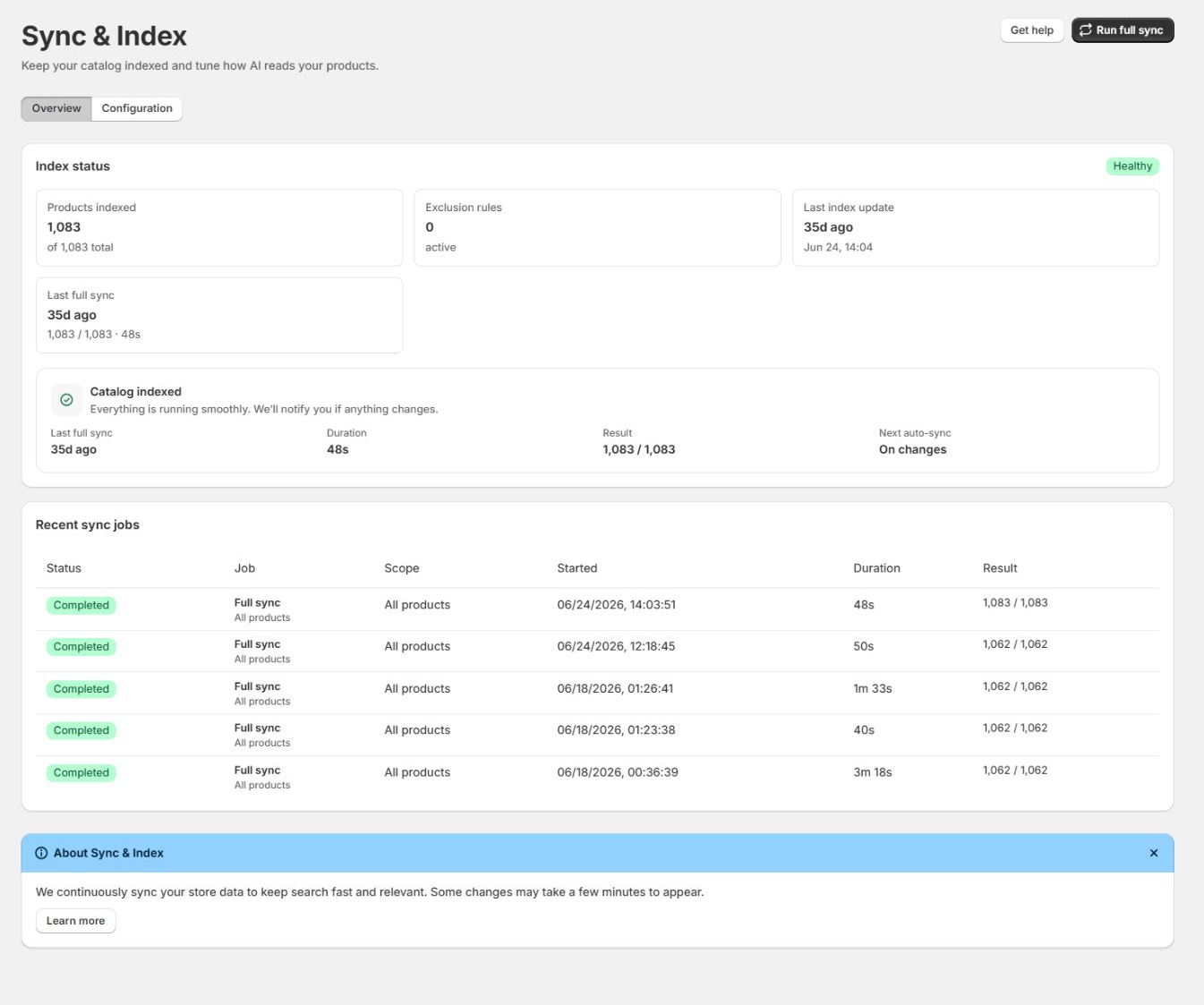
Sync and Index: Overview
Section titled “Sync and Index: Overview”Overview controls full synchronization and reports catalog-index health.
Status of VIBE’s copy of your catalog
Section titled “Status of VIBE’s copy of your catalog”- Products indexed compares searchable product records with the catalog total visible to the job. This is how many products are in VIBE’s copy of your catalog.
- Exclusion rules counts active product, collection, and tag exclusions.
- Last index update is the latest time VIBE’s copy of your catalog changed, including automatic updates.
- Last full sync reports the most recent complete rebuild attempt.
Job states
Section titled “Job states”| Status | Meaning | Merchant action |
|---|---|---|
| No catalog copy yet | VIBE has not built a usable copy of your catalog yet | Select Run full sync |
| Pending | The job is queued | Wait and do not submit another run |
| Running | Products, variants, or collections are processing | Watch progress; other admin work can continue |
| Healthy or Completed | The run completed without unresolved items | Test important queries |
| Partial | Some items failed after retry | Select Finish sync, then inspect repeat failures |
| Cancelled | A merchant stopped the run | Select Run full sync when ready |
| Issues or Failed | The job could not finish | Read the error, correct the cause, and retry |
Cancel sync stops current work but does not intentionally delete VIBE’s last usable copy of your catalog. Finish sync targets unresolved items after a partial run.
When to update your whole catalog
Section titled “When to update your whole catalog”Run one after:
- A bulk import or broad catalog rewrite.
- A change to how VIBE reads your products, or to an image source.
- A large collection or variant-model change.
- Adding or removing broad exclusions.
- A relevance audit that proves VIBE’s copy of your catalog is stale.
Do not repeat a full catalog update to fix CSS, theme switches, app blocks, rule priority, translations, or broken theme-card selectors.
- Which products can show is called “eligibility” in the admin.
- Shopper visits are called “sessions.”
- The admin calls this area “indexing” or “the index”: “Not indexed” means no usable first sync has completed, and “indexed data” is VIBE’s copy of your catalog.
- “How VIBE reads your products” is the “search profile.”
- “Theme switches” are “app embeds.”
Read Sync and Index.
Sync and Index: Configuration
Section titled “Sync and Index: Configuration”Configuration changes which catalog data VIBE can use. Several settings activate a new profile or require synchronization before the storefront changes.
Hidden from search
Section titled “Hidden from search”| Exclusion | What it affects | Best use |
|---|---|---|
| Product | One selected product | Internal, placeholder, or exceptional item |
| Collection | Products belonging to a selected collection | Clearance, wholesale, or campaign catalog group |
| Tag | Every product with the tag | Repeatable governance such as discontinued |
An exclusion removes the item from VIBE results. It does not delete or unpublish the Shopify product.
After changing exclusions, allow the queued update to finish. Select Run full sync when the change is broad or urgent.
Out-of-stock products
Section titled “Out-of-stock products”| Setting | Shopper effect | Tradeoff |
|---|---|---|
| Hide | Sold-out products are removed | Highest availability precision, lowest discoverability |
| Show last | Sold-out products remain after in-stock items | Preserves discovery without leading with unavailable products |
| Mix in | Availability does not force sold-out products lower | Natural relevance remains, but unavailable products can lead |
How VIBE reads your products: status
Section titled “How VIBE reads your products: status”The status card summarizes the active catalog-understanding preference and whether collections, variants, and images are available.
Select Analyze catalog again after a substantial product-structure or presentation change. Analysis chooses or refreshes a profile. It does not repair incomplete Shopify data.
Catalog understanding
Section titled “Catalog understanding”| Choice | Favors | Use when |
|---|---|---|
| Balanced | Text, structured details, and images together | Most mixed catalogs |
| More visual | Product and context imagery | Appearance, composition, style, or shape carries meaning |
| More text | Titles, descriptions, types, tags, and structured data | Technical or text-rich catalogs |
Changing the preference guides the next profile refresh. Test a stable query set after the profile and required catalog update are active.
Collection search
Section titled “Collection search”When enabled, matching collections can appear with products. Use it when shoppers browse by category, department, artist, room, style, or another collection concept.
Changing it activates a new profile and queues collections to be added to VIBE’s copy.
Variant search
Section titled “Variant search”When enabled, variants are added to VIBE’s copy of your catalog separately so precise colors, sizes, materials, capacities, and other options can match. It requires the plan shown in VIBE and can trigger a full catalog update.
Search by image
Section titled “Search by image”This switch exposes shopper image uploads where the plan and selected surfaces allow it. It remains unavailable until image matching has a usable source in VIBE’s copy of your catalog.
Product photos
Section titled “Product photos”Choose the primary image used for product-level visual matching:
- A Shopify product image position.
- An image URL stored in a product metafield.
- No product photo when context images should be the only visual input.
Variants use their own Shopify variant photo when available.
Context photos
Section titled “Context photos”Choose an optional image source for lifestyle, room, model, detail, or editorial context. The source can be another product-image position, an image URL metafield, or none.
After changing either image source, run the required catalog update and re-test Similar and image search.
Google Tag Manager
Section titled “Google Tag Manager”When enabled, VIBE pushes configured search events to window.dataLayer. The store must already load and configure Google Tag Manager.
Use browser developer tools or a tag-debugging workflow to verify events before relying on them in another analytics system.
Read Privacy, shopper visits, and sales tracking.
Verification checklist
Section titled “Verification checklist”- Wait for profile activation or synchronization to finish.
- Confirm the expected count of products in VIBE’s copy of your catalog.
- Test an exact product title.
- Test a broad query and a previously weak query.
- Verify an excluded and an out-of-stock product.
- Test collection, variant, Similar, or image search when the changed setting affects it.
- Record the date and setting so later Analytics comparisons have context.
Next: configure search boxes, cards, translations, style, and theme installation.
Appearance controls