Visual discovery and Your Vibe
Visual discovery gives shoppers ways to find products without relying only on words. VIBE supports product-to-product similarity, saved products and recommendation boards, and shopper-uploaded image search.

Your Vibe begins empty on a browser that has no saved products.
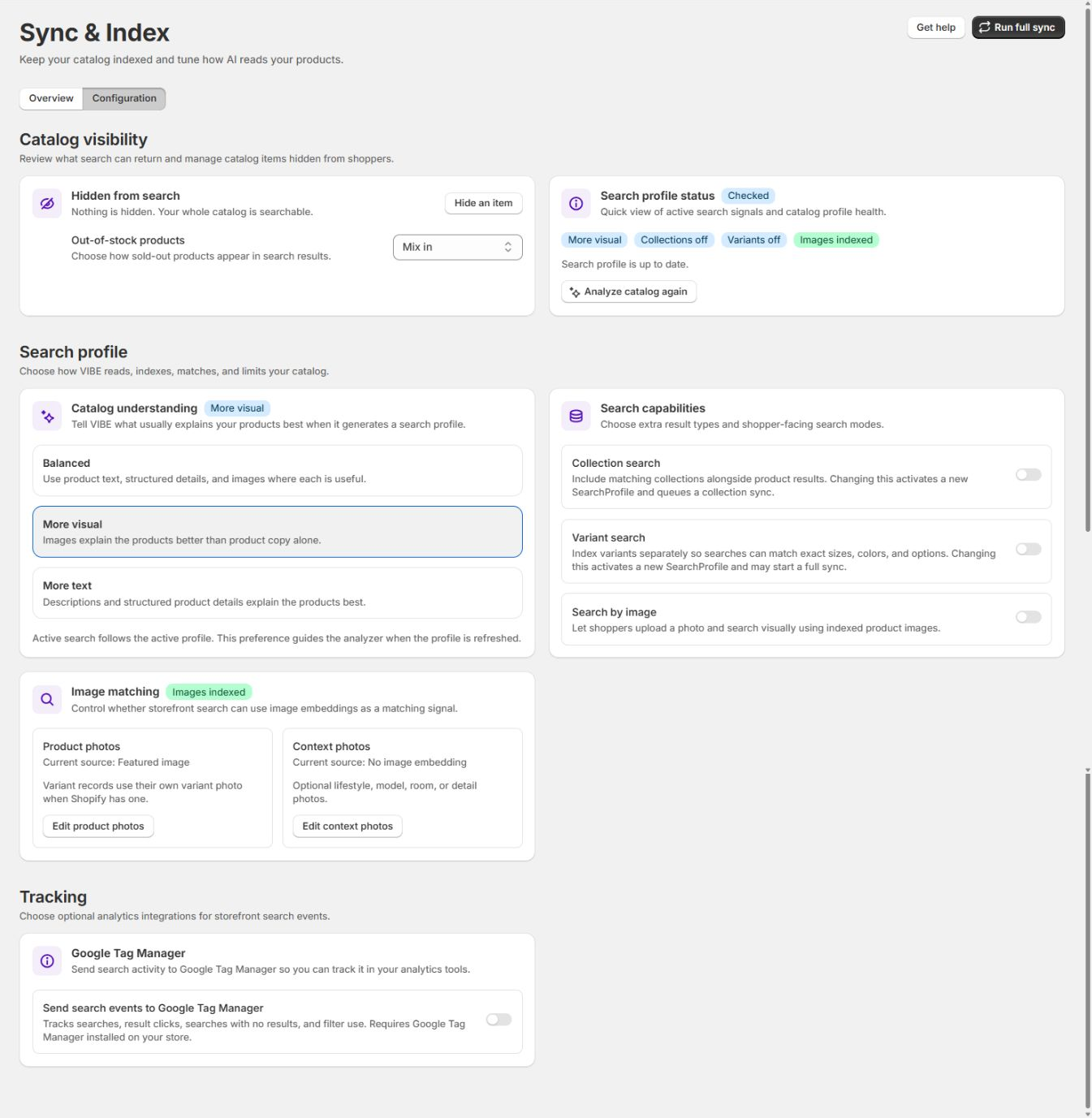
Visual discovery depends on image matching being turned on and your product images being ready in VIBE.
Feature summary
Section titled “Feature summary”| Feature | Shopper action | Result | Plan |
|---|---|---|---|
| Find similar | Select Similar on a product card | Visually related products based on the selected product | Growth and higher |
| Taste | Select the star or save action | Saves the product and updates Your Vibe | Growth and higher |
| Your Vibe | Open the Your Vibe tab | Saved products and boards of related products | Growth and higher |
| Image search | Upload a photo from a VIBE search bar | Products visually related to the uploaded image | Pro and Enterprise |
These features require your product images to be ready in VIBE. Image search and exact image matching quality also depend on which image sources you selected in Sync and Index.
Prepare image matching
Section titled “Prepare image matching”Open VIBE admin > Sync and Index > Configuration.
Check that images are ready
Section titled “Check that images are ready”The Search profile status card shows whether VIBE is ready to read your products. Confirm it says ready, then review the Images badge.
If images are off, visual actions cannot use your product images.
How to check it worked: the Images badge on the Search profile status card shows ready.
Choose product photos
Section titled “Choose product photos”Product photos are the primary visual identity for matching. Choose the image position or supported metafield source that best represents the product.
Good sources:
- A clean primary product photo.
- A consistent catalog image position.
- A dedicated product metafield containing the intended search image.
Avoid a source that mixes packaging, logos, size charts, and product photos unpredictably.
Variants use their own variant photo when Shopify provides one.
Choose context photos
Section titled “Choose context photos”Context photos are optional lifestyle, model, room, detail, or use-case images.
Use them when context is important to similarity, such as furniture in a room or clothing on a model. Keep the product-photo source focused on the product itself.
Update your catalog after an image-source change
Section titled “Update your catalog after an image-source change”Changing the source changes what VIBE needs to read from your images. Allow VIBE to finish updating its copy of your catalog before judging visual results.
Enable Find similar and Taste
Section titled “Enable Find similar and Taste”Open VIBE admin > Explore mode > Product card actions.
- Turn on Similar.
- Turn on Taste.
- Confirm the controls are not plan locked.
- Open the storefront and inspect a VIBE product card.
How to check it worked: the Similar and save actions appear on VIBE product cards in search, Explore, and quick results.
If something looks wrong: see Similar or image search is weak.
How Find similar works
Section titled “How Find similar works”The shopper selects Similar on a product card.
VIBE:
- Uses the selected product as the visual seed.
- Opens the Similar result state.
- Shows a seed chip so the shopper can see which product started the search.
- Returns visually related products.
- Lets the shopper remove the seed and return to normal Search.
Normal price or newest sorting does not apply to visual similarity. Results are ordered by their match to the seed.
When it is useful
Section titled “When it is useful”Use Find similar for catalogs where shoppers compare:
- Shape or silhouette.
- Color composition.
- Pattern.
- Material appearance.
- Furniture or interior style.
- Art or visual theme.
It is less useful when product photos do not show the differentiating feature.
How Taste and saving work
Section titled “How Taste and saving work”The star or save action adds a product to Your Vibe.
Saving does not immediately replace the current search. It updates the shared saved-product state across VIBE surfaces.
Saved products:
- Are stored per shop in the shopper’s browser.
- Are ordered with the newest save first.
- Are limited to 48 products.
- Update across tabs in the same browser.
- Are not tied to a Shopify customer account.
Because saves use browser local storage, clearing browser site data, using a different browser, or using a different device produces a different saved list.
How Your Vibe works
Section titled “How Your Vibe works”The shopper opens the Your Vibe tab.
No saved products
Section titled “No saved products”The empty state explains that no favorites have been saved and provides an Explore products action.
Saved products
Section titled “Saved products”The Your Favorites section shows saved products. A shopper can:
- Open a product.
- Remove it from favorites.
- Open the complete favorites view.
- Save more products from other VIBE surfaces.
Recommendation boards
Section titled “Recommendation boards”VIBE creates boards of related products based on saved items. The shopper can:
- Review a board.
- See which favorites the board is based on.
- Select Show more.
- Open a larger related result set.
- Return to all favorites.
- Move from the board to Explore when the desired product is not present.
Recommendation boards can take a moment to populate after the saved list changes.
Taste product popup
Section titled “Taste product popup”Where enabled, selecting a product in a Taste context can open a product popup. The popup can provide:
- Product image and title.
- Navigation between products.
- Save to Your Vibe.
- Go to product.
- Show more products.
- Add to cart when the product and variant data allow it.
Test add-to-cart on products with one variant and products with several variants. The final behavior can depend on the product and theme data available to the popup.
Enable image search
Section titled “Enable image search”Image search requires Pro or Enterprise.
- Open Sync and Index > Configuration.
- Confirm image matching is on and your product images are ready.
- Turn on Search by image.
- Open Appearance and confirm the tested surface uses a VIBE-owned search bar.
- Test both quick search and the full search page.
How to check it worked: a camera icon appears in the VIBE-owned search bar on both quick search and the full search page.
If something looks wrong: see Similar or image search is weak.
VIBE turns on quick-search and full-page image search separately, so double-check both even after enabling the feature once.
How shoppers search from an image
Section titled “How shoppers search from an image”- Select Image search.
- Upload a JPG or PNG.
- Review the selected-file state.
- Select Search similar items.
- Review the returned products.
- Select the image chip to review or replace the image.
- Remove the image to clear the visual query.
The uploaded image is used for the active visual request. Closing the overlay clears that image-search state.
Expected result
Section titled “Expected result”For a well-prepared visual catalog:
- Similar results share visible qualities with the seed product.
- Saving a product updates its star state everywhere in the open browser.
- Your Vibe shows saved items after reopening search.
- Related boards reflect the current saved list.
- Image search returns products that visually resemble the uploaded item.
- Removing a seed or uploaded image returns the shopper to the normal search state.
Test plan
Section titled “Test plan”Find similar
Section titled “Find similar”- Choose a product with a distinctive image.
- Select Similar.
- Confirm the seed chip identifies the correct product.
- Review the first results for visible similarity.
- Remove the seed.
Save and remove
Section titled “Save and remove”- Save a product from Search.
- Open Explore and confirm the same product shows as saved.
- Open Your Vibe and confirm it is first in Favorites.
- Remove it.
- Reload the page and confirm it remains removed.
Browser persistence
Section titled “Browser persistence”- Save two products.
- Close and reopen the storefront in the same browser.
- Confirm both remain.
- Open a private window and confirm it has a separate list.
Image search
Section titled “Image search”- Upload a clean product photo.
- Confirm a visual result set appears.
- Repeat with a lifestyle photo.
- Try an unsupported file and confirm a clear error appears.
- Remove the image and run a normal text query.
Improve weak visual results
Section titled “Improve weak visual results”- Check the selected product-photo and context-photo sources.
- Confirm the source contains the expected image for the weak product.
- Confirm VIBE finished updating its copy of your catalog after the image-source choice.
- Compare several products, not only one.
- Use consistent primary images where possible.
- Avoid judging similarity from titles alone.
- Contact support with the seed product URL, returned products, and screenshots when the mismatch is systematic.
If something looks wrong
Section titled “If something looks wrong”- Similar or Taste is disabled in the admin: check your plan and whether your product images are ready. Growth or higher is required, and the catalog needs usable images.
- A product has no action buttons: confirm the related action is on, the plan allows it, and the product-card surface supports the action. A theme-owned card can show fewer VIBE actions than a VIBE-rendered card.
- Saves disappear: Your Vibe uses browser local storage. Saves do not follow the shopper to another device or browser and can be removed when site data is cleared.
- Your Vibe is empty after saving: confirm the shopper is on the same shop domain and browser, then try another save and reopen the Your Vibe tab. Browser privacy settings can block local storage.
- Image search button is missing: see Similar or image search is weak. The camera does not appear on your theme’s native search bar, only on a VIBE-owned one.
- An uploaded file is rejected: use a JPG or PNG. If a phone supplied another format, export or convert it to JPG or PNG and try again.