Explore and Smart Filters
Explore is a guided product-browsing experience. It is designed for shoppers who know the qualities they want but may not know the exact product name or search phrase.
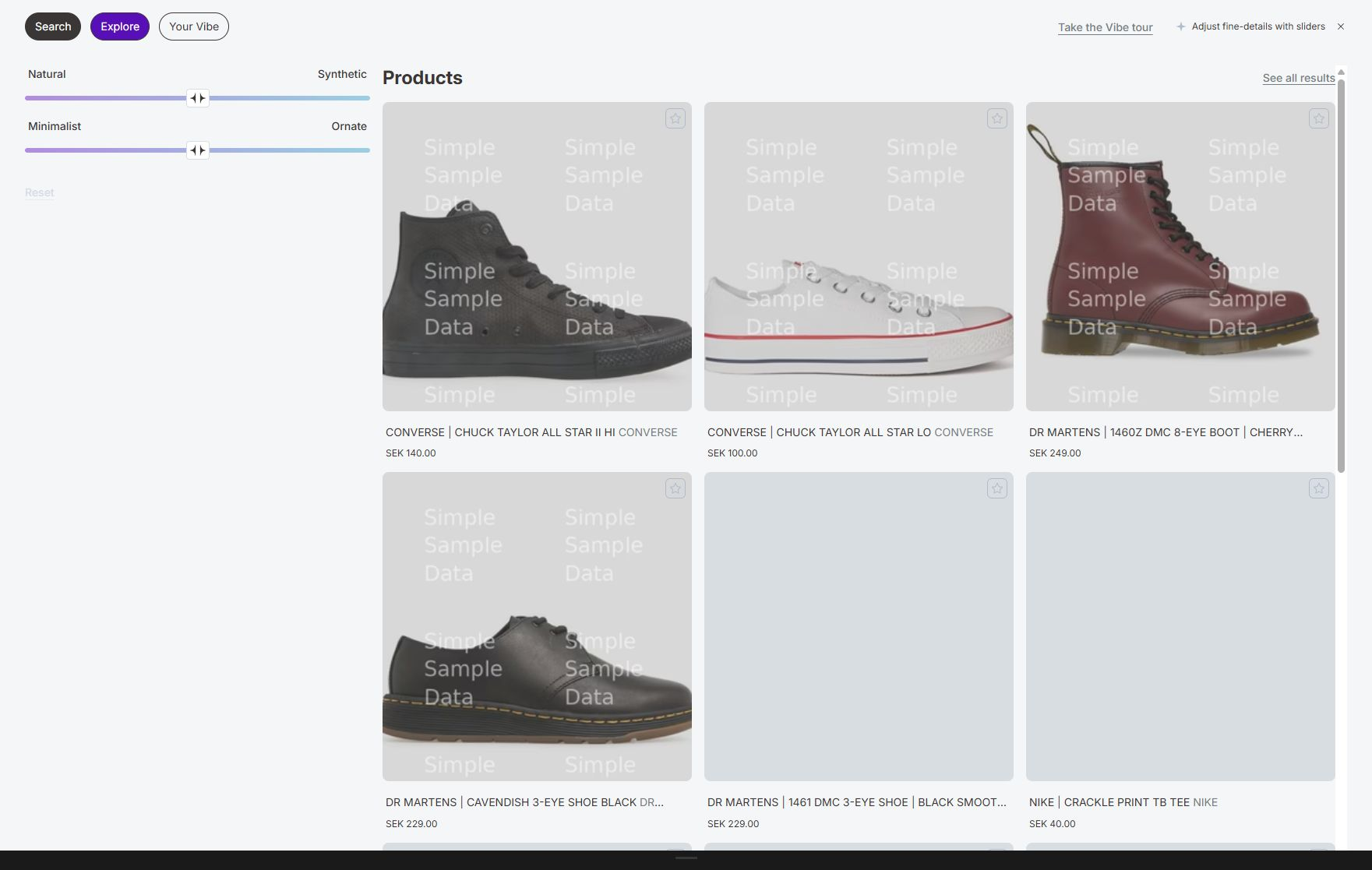
What Explore does
Section titled “What Explore does”Explore can combine:
- Explore sliders.
- Two-option toggles.
- Single-concept controls.
- Starting collections.
- Shopify Search and Discovery filters.
- Sorting.
- Product-card actions.
A shopper can begin with all products or a collection, adjust one or more controls, add exact filters, and continue loading products.
Why use Explore
Section titled “Why use Explore”Text search starts with a query. Explore starts with preferences.
Use Explore when:
- Products are chosen by style, mood, use case, fit, material feel, or visual character.
- Shoppers may not know the terms used in the catalog.
- A category contains many similar products and needs guided narrowing.
- You want a browse path from the search page without building a separate collection for every preference.
Explore does not replace Shopify filters. The two tools solve different problems.
| Shopper need | Best control |
|---|---|
| “More minimal, less decorative” | Explore slider |
| “Natural or synthetic” | Two-option toggle |
| “More waterproof” | Single concept |
| “Only size M” | Shopify filter |
| “Under $100” | Price filter |
| “Only in stock” | Availability filter |
Plan availability
Section titled “Plan availability”- Explore inside the search experience requires Growth, Pro, or Enterprise.
- The standalone VIBE Explore app block requires Pro or Enterprise.
- Growth allows up to four active controls.
- Pro and Enterprise allow unlimited active controls.
- Find similar and Tastes require Growth or higher.
Starter stores can configure basic search and result rules but do not show the Explore storefront experience.
Prepare Explore
Section titled “Prepare Explore”1. Update VIBE’s copy of your catalog
Section titled “1. Update VIBE’s copy of your catalog”VIBE needs your catalog ready before it can create default controls or let shoppers browse it.
Open Sync and Index and confirm:
- VIBE’s copy of your catalog is up to date.
- How VIBE reads your products is ready.
- The collections you want are included.
- Image matching is ready if visual actions will be used.
How to check it worked: the Overview tab shows a completed update with no failed items.
2. Turn on Explore mode
Section titled “2. Turn on Explore mode”Open VIBE admin > Explore mode.
The Enable all controls switch is the master switch. When it is off, controls and filters are hidden from shoppers.
3. Generate controls
Section titled “3. Generate controls”Select Regenerate to create default controls from your catalog.
Regeneration replaces generated default controls. It preserves custom controls. If a new generated set cannot be created, the current set remains available.
Review the labels before publishing. A generated control can be technically valid but unclear to a shopper.
How to check it worked: the control list shows a new set of default controls with plain-language labels.
If something looks wrong: see An Explore control has little effect.
Create controls
Section titled “Create controls”Slider
Section titled “Slider”A slider has two opposing ends, such as Casual and Formal. The middle is neutral.
Use it when:
- Both ends are meaningful.
- A product can sit anywhere between them.
- Moving in either direction should reorder the same catalog.
Avoid pairs that are not true opposites, such as “cotton” and “formal.”
Toggle
Section titled “Toggle”A toggle presents two choices and can be cleared.
Use it for a direct alternative, such as:
- Natural or synthetic.
- Indoor or outdoor.
- Warm or cool tone.
Single concept
Section titled “Single concept”A single control strengthens one idea from a neutral starting point, such as:
- More waterproof.
- More compact.
- More luxurious.
Use it when there is no useful opposite label.
Create a custom control
Section titled “Create a custom control”- Select Create.
- Choose Slider, Toggle, or Single.
- Enter short concept labels.
- Add an optional shopper-facing title.
- Select Add control.
- Confirm the control is active.
New controls become active if the plan limit allows it. Otherwise, they remain saved but inactive.
How to check it worked: the new control appears in the control list and, if active, on your storefront.
Order and manage controls
Section titled “Order and manage controls”- Drag controls into the order shoppers should see.
- Use each row’s switch to activate or deactivate it.
- Edit a custom control to improve its labels.
- Delete a custom control that is no longer useful.
- Regenerate default controls instead of trying to delete an individual default.
The control type cannot be changed after creation. Create a replacement if the concept should use a different interaction.
Keep the first controls broad and understandable. More controls are not automatically better. Shoppers should be able to predict what moving a control will do.
Configure starting collections
Section titled “Configure starting collections”Starting collections help shoppers begin Explore within a recognizable part of the catalog.
The default mode is Featured only. A new store starts with no featured collections, so shoppers can browse everything through All until you choose the collections to feature.
To configure them:
- Open Starting collections.
- Choose Featured only or All collections.
- Select Manage.
- Search the collection list.
- Check the collections that should be available as starting points.
- Select Done.
Use Featured only when you want a short curated set. Use All collections when the collection list is already clean and manageable.
How to check it worked: the collections you checked appear as starting points on your storefront’s Explore tab.
Hiding a collection from Explore starting points does not remove it from keyword search. The two are controlled separately.
Configure Smart Filters
Section titled “Configure Smart Filters”VIBE reads the filters configured in Shopify Search and Discovery.
- Add or edit filters in Shopify Search and Discovery.
- Return to VIBE admin > Explore mode.
- Select Refresh filters from Shopify.
- Confirm the expected filter chips appear in the admin.
- Turn on the Filters switch.
- Test a result set where each filter has applicable values.
How to check it worked: the filter chips appear on your storefront and narrow results correctly.
If something looks wrong: see Filters are missing.
Filters are read-only in VIBE because Shopify is their source. Rename or remove a filter in Shopify, then refresh it in VIBE.
Configure product-card actions
Section titled “Configure product-card actions”The Product card actions card has two controls:
- Similar lets shoppers start Find similar from a product card.
- Taste lets shoppers save a product and build Your Vibe.
The switches are disabled when the current plan does not include the feature or required visual embeddings are not ready.
See Visual discovery and Your Vibe.
How shoppers use Explore
Section titled “How shoppers use Explore”The shopper opens the Explore tab in the VIBE search experience. If the standalone block is installed, the shopper can start directly from that section.
The page begins with all products or a selected starting collection.
Adjust an Explore control
Section titled “Adjust an Explore control”Moving a slider or choosing a toggle tells VIBE what to look for. Results reorder toward the selected concept.
Controls start neutral. VIBE remembers the shopper’s positions in that browser until the shopper resets them or the control set changes.
Choose a collection
Section titled “Choose a collection”Collection choices narrow the browse context. The All choice returns to the complete available catalog.
Apply exact filters
Section titled “Apply exact filters”The shopper can add availability, price, option, product type, vendor, or supported metafield filters. Multiple filter groups can be combined.
When sorting is available, the shopper can use relevance, price, or newest. Relevance keeps the order set by the Explore controls.
Reset returns Explore controls to neutral and clears the current guided adjustments. Exact filter controls also provide a clear action.
Use the tour
Section titled “Use the tour”The VIBE overlay includes a shopper tour that introduces Explore, Smart Filters, and Your Vibe. A shopper can dismiss it or reopen it with Take the Vibe tour.
Add the standalone Explore block
Section titled “Add the standalone Explore block”Pro and Enterprise stores can place Explore on a page outside the normal search interface.
- Open Shopify Theme Editor.
- Open the template where Explore should appear.
- Add the VIBE Explore app block as a section.
- Choose a width:
- Theme section
- Narrow
- Standard
- Wide
- Full available width
- Decide whether to show the collection selector.
- Decide whether to include the All option.
- Optionally choose up to 12 block-specific collections.
- Save the theme.
The block uses the same VIBE settings for controls, filters, cards, and styling used everywhere else. Theme Editor collection choices affect that block’s collection selector.
How to check it worked: the page shows Explore without the Search and Your Vibe tabs. Shoppers can adjust controls, collections, filters, and sorting inside the block.
If something looks wrong: see An Explore control has little effect.
Read Explore impact
Section titled “Read Explore impact”The admin’s impact card helps decide whether controls are useful.
- Control engagement is the share of searches that used a control.
- Most used control identifies the control adjusted most often.
- Views, Add to cart, and Orders show the funnel associated with Explore use.
- The small rail on each control shows the average direction shoppers leaned. It is not a merchant-set default.
Compare the selected period with the previous period. Do not judge a new control after only a few uses.
Operating recommendations
Section titled “Operating recommendations”- Start with two to four clear controls.
- Put the most understandable control first.
- Use shopper language, not internal taxonomy.
- Avoid two controls that describe the same idea.
- Keep exact attributes in Shopify filters.
- Feature a short collection list.
- Review engagement before adding more controls.
- Test the same control on mobile and desktop.
If something looks wrong
Section titled “If something looks wrong”- Explore is not visible: confirm the plan is Growth or higher, Enable all controls is on, at least one control is active, the VIBE switch is on in your theme, and the tested surface supports Explore.
- A control is saved but not visible: check the control’s status and the active-control plan limit. Saved inactive controls do not appear to shoppers.
- Results do not change when moving a control: see An Explore control has little effect. If unrelated controls behave the same way, also confirm how VIBE reads your products is ready and VIBE’s copy of your catalog is up to date.
- A collection is missing: confirm VIBE’s copy of your catalog is up to date and that the collection has searchable products. If Featured only is selected, open Manage starting collections and feature it.
- Filters are missing: see Filters are missing.
- The standalone block is unavailable: it requires Pro or Enterprise. Growth includes Explore inside the search experience only.